

Blink Camera Offline? Causes, Fixes & Prevention (Complete 2026 Guide)
Quick summary:
-
A Blink camera going offline almost always points to a connectivity issue — weak Wi-Fi signal, incorrect password, network congestion, or a sync module that's lost its connection to the internet.
-
Always check the sync module first — if the module is offline, every camera in the system loses communication regardless of its own power or placement status.
-
Power cycle everything before going deeper — turning off the camera, unplugging the sync module, and restarting the router resolves most temporary disconnections without further troubleshooting.
-
Blink cameras require a 2.4 GHz network with at least 2 Mbps upload speed — connecting to a 5 GHz or guest network, or using a Wi-Fi password with special characters, are common setup mistakes that cause persistent offline issues.
-
Placement and signal strength are the most overlooked factors — cameras need 3 bars of connectivity and should be within 100 ft of the sync module, with the module kept close to the router for best performance.
With the right network setup, stable power, and correct placement, most Blink offline issues can be fixed in minutes and prevented from coming back.
If you’ve opened your Blink app and noticed your Blink camera offline, you’re not alone. This is one of the most common issues users experience with Blink cameras. And while it can be frustrating, it’s usually easy to fix.
Whether you’re dealing with a single camera or multiple Blink devices, an offline message typically means your device has temporarily lost connection to your Wi-Fi network or the internet. The good news? Most cases can be resolved with simple troubleshooting steps.
This guide will walk you through exactly how to diagnose, fix, and prevent your Blink camera from going offline, even if your sync module is offline, your Wi-Fi password has changed, or your router is acting up.
Quick Checklist: Why Your Blink Camera Is Offline
Before diving into deeper fixes, scan this list. Most issues come from one of these:
-
Your internet service is down.
-
Weak Wi-Fi signal on your Wi-Fi network
-
Connected to a temporary or guest network
-
Incorrect Wi-Fi password
-
Your sync module is offline.
-
Power loss to your device
-
Distance issues between the camera, module, and router
-
Network congestion is affecting other devices.
If any of these apply, you’re already close to getting your camera back online.
Step-by-Step Troubleshooting Roadmap (Follow in Order)
To properly fix a Blink camera offline issue, it’s important to follow the correct sequence. Following the troubleshooting steps systematically helps address issues such as incorrect Wi-Fi passwords, LED indicator signals, and connectivity problems. Skipping steps can make the problem harder to diagnose.
Step 1: Check If Your Sync Module Is Offline
The sync module acts as the bridge between your Blink cameras, the cloud, and your Blink app. If the sync module is offline, your cameras cannot connect, even if everything else looks fine.

-
Check the LED indicators on the module.
-
Open the Blink app and confirm the status.
-
If offline, resolve this first before moving to the next step
Without a working sync module, your system cannot function online.
Step 2: Check Power on Your Camera and Module

Your device's functionality depends on stable power.
-
For wired cameras: ensure cables are secure.
-
For battery cameras: check battery levels.
-
Replace batteries if needed.
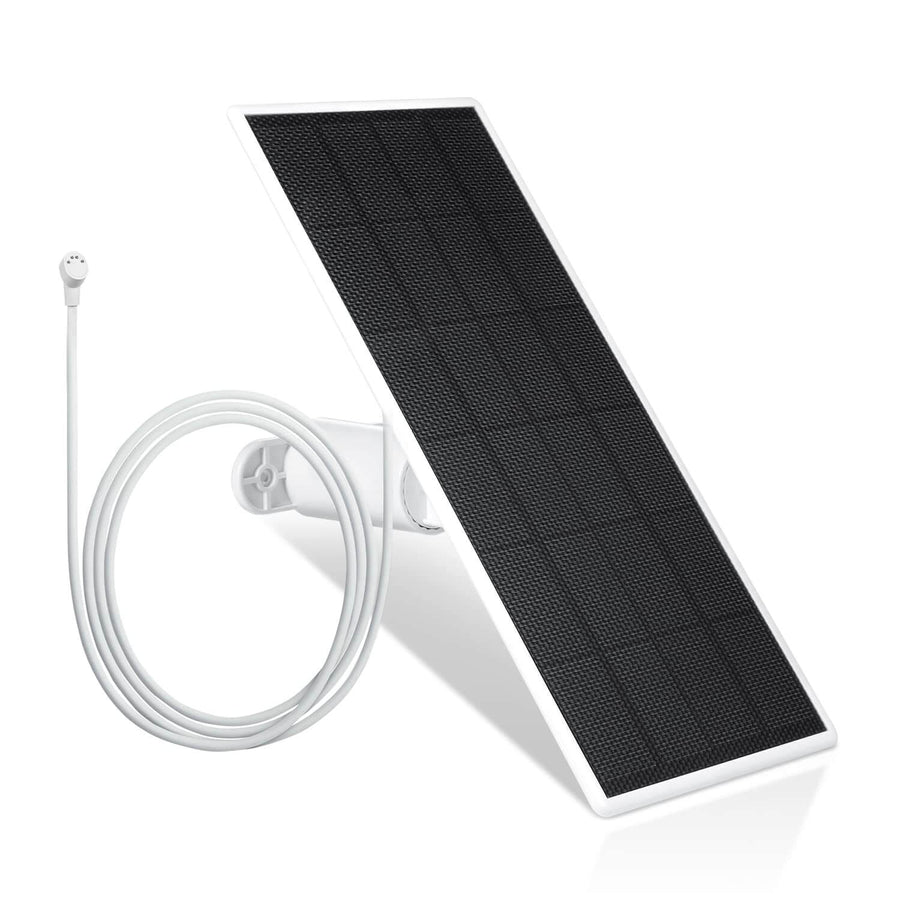
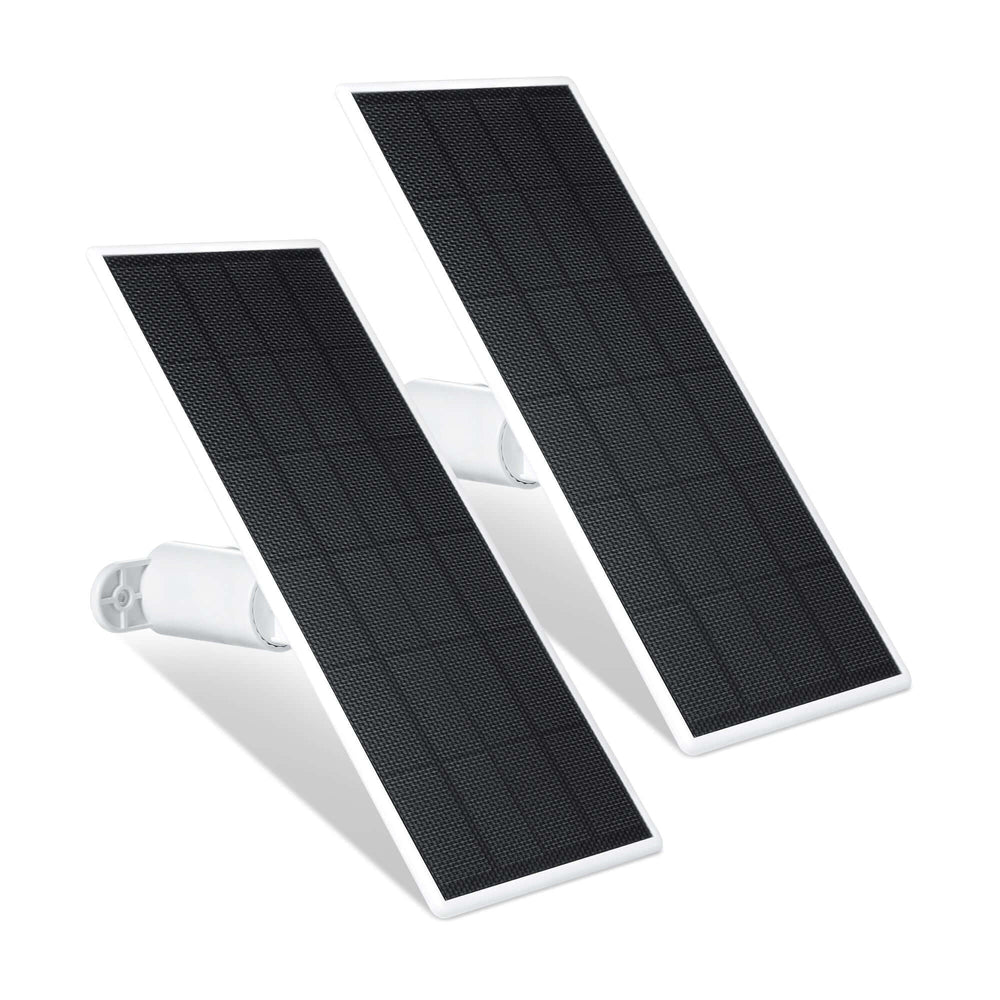
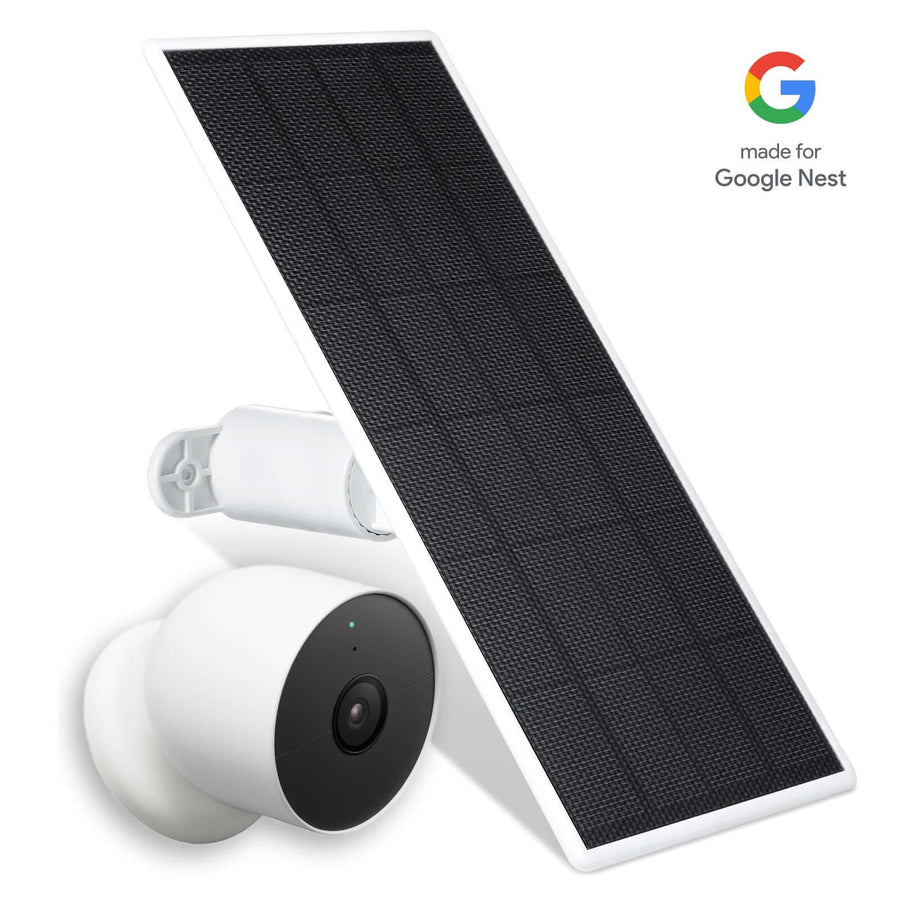
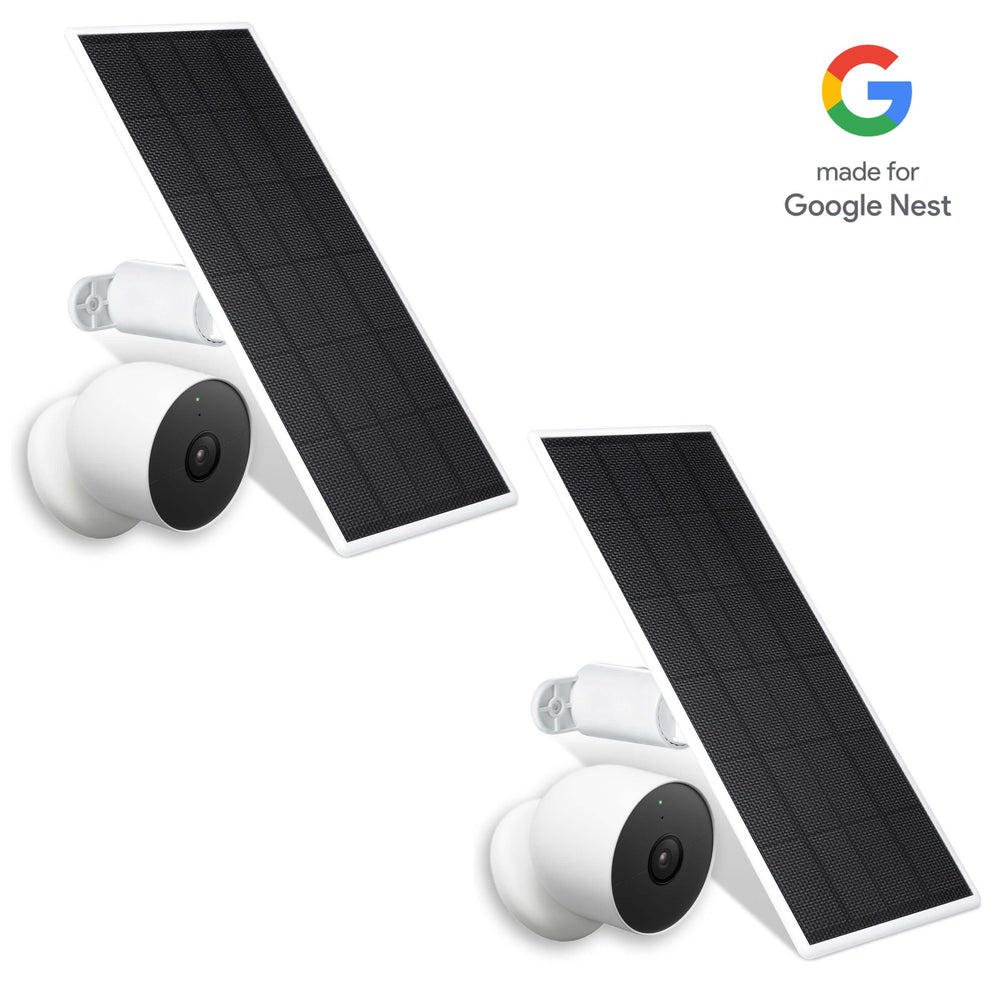
Even one camera losing power can result in an offline message. To reduce recurring power-related issues, many users rely on solutions like the Wasserstein Blink Camera Solar Panel, which helps keep outdoor cameras continuously powered without frequent battery swaps. For indoor or extended usage, the Wasserstein Blink Camera Battery Pack can significantly extend battery life and improve reliability; you can also follow a dedicated guide on using the Wasserstein battery extension for Blink Outdoor/Indoor or learn how a Blink Outdoor 4 battery extension prevents downtime.
Step 3: Power Cycle Your Devices
A full power cycle can resolve most temporary connectivity issues.
-
Turn off your camera.
-
Unplug the sync module.
-
Restart your router
-
Restart both your modem and router if needed.
-
Wait 30 seconds before turning devices back on
This process refreshes your connection and often brings your system back online, resolving many of the most common Blink camera not working issues.
Step 4: Check Your Wi-Fi Network

Your Wi-fi network is critical to your Blink system.
-
Confirm your mobile device is connected to Wi-Fi.
-
Test internet access on other devices
-
Ensure your network is stable.
If needed:
-
Use the Blink app to reconnect to the Wi-Fi network
Step 5: Verify Wi-Fi Password and Network Settings
Incorrect credentials are a major cause of offline issues.
-
Check your Wi-Fi password.
-
If recently changed, update it in your network settings.
-
Avoid overly complex passwords with special characters that may create challenges.
If needed:
-
Temporarily change your password to something simple.
-
Complete setup
-
Restore your preferred password after successfully setting up your device
Step 6: Avoid Temporary or Guest Networks
Connecting to a temporary guest network or a temporary guest network specifically can cause issues.
-
These networks often limit connectivity.
-
They may prevent devices from staying connected
Always connect your Blink devices to your main Wi-Fi network, not a guest network.
Step 7: Check Signal Strength and Distance
Weak signals cause frequent offline problems.
-
Move your camera closer to your router or sync module.
-
Reduce interference from walls or electronics.
-
Ensure consistent connectivity
Improving placement can make a major difference. Accessories like the Wasserstein Adjustable Metal Wall Mount for Blink Outdoor, XT2 / XT, or the Wasserstein Weatherproof Gutter Mount help position your camera higher and in clearer line-of-sight areas, improving both signal strength and overall security coverage.
Step 8: Reset the Device (Last Resort)
If all else fails:
-
Locate the reset button
-
Perform a full reset following easy steps to reset a Blink camera.
-
Reconnect through the Blink app.
This is especially helpful during initial setup or persistent connection issues. For battery-powered cameras, remove the batteries for 5-10 seconds, then reinsert them to power cycle the camera.
How to Tell If Your Blink Camera Is Offline
Recognizing when your system is offline allows you to act quickly and avoid unnecessary troubleshooting. The Blink app usually provides clear indicators, but understanding what each sign means helps you diagnose the issue faster.

-
Dimmed or greyed-out camera thumbnail. When your camera appears faded or inactive in the Blink app, it means the device is no longer actively communicating with the system. This visual cue is often the first sign that your connection to the Wi-Fi network or the internet has been interrupted.
-
“Offline message” displayed in the app. An offline message explicitly confirms that the camera cannot connect to Blink servers. This message appears when communication between your device, the Sync Module, and the cloud has been disrupted.
-
Camera won’t load or respond. If you attempt to access Live View and the camera fails to load, keeps buffering, or does not respond at all, it indicates that the device cannot establish a stable connection. This often happens during network interruptions or when the Sync Module is offline and typically points to Blink Live View not working problems.
It’s important to understand that these signs do not necessarily indicate a hardware failure. In most cases, they simply mean your camera cannot currently communicate due to network, power, or configuration issues, and it can usually be restored online with the right fix.
Understanding Why Blink Cameras Go Offline
A Blink camera offline issue is almost always tied to connectivity, but the source of that disruption can vary. Instead of guessing, it helps to understand the main categories where problems occur.
Network Issues
Most offline problems start with your Wi-Fi network. All Blink cameras require a 2.4 GHz Wi-Fi Internet connection. If the signal is weak or inconsistent, your camera may struggle to maintain a stable connection. Even if your mobile device or other devices seem fine, Blink cameras are more sensitive to upload interruptions.
Poor internet service is another major factor. If your connection drops or slows down, especially during peak hours, your camera may fail to check in and appear offline. Network congestion, caused by multiple devices streaming or downloading, can also interfere with performance.
Sync Module Problems
The Sync Module is the backbone of your system. When the Sync Module is offline, all connected Blink devices lose communication at once, and understanding the differences between Blink Sync Module 1 and 2 can help you choose the most reliable setup.
This can happen if the module loses power, connects to the wrong Wi-Fi network, has outdated credentials, or is placed too far away from your cameras. The Sync Module should be able to communicate with Blink cameras up to 100 ft. (30m) away in any direction. It is recommended to keep the Sync Module near your wireless router for best signal strength.
Even something as simple as an incorrect Wi-Fi password can prevent it from reconnecting successfully. Because of this, checking the module should always be one of your first troubleshooting steps. The Sync Module's status can be checked by looking for a solid blue and blinking green LED.
Device Issues
Sometimes the problem is isolated to the camera itself. Battery-powered devices may go offline if the batteries are low or inconsistent. Wired cameras, on the other hand, may experience loose connections or power interruptions.
Setup errors during the initial setup phase can also cause recurring issues. If the device wasn’t configured properly or saved incorrect network settings, it may repeatedly disconnect.
Environmental Factors
Placement plays a bigger role than many users expect. If your camera is too far from the router or Sync Module, the signal may weaken to the point where it cannot maintain a stable connection.
Physical barriers such as walls, metal surfaces, or furniture can interfere with your Wi-Fi signal. Even small placement adjustments can significantly improve reliability and reduce the chances of your camera going offline.
Wi-Fi Requirements for Blink Cameras
To function properly, your Blink system depends on a stable and correctly configured Wi-Fi network. Without it, your cameras cannot maintain communication or operate reliably, so it’s important to follow best practices on how to connect a Blink camera to Wi-Fi.
Key Requirements
-
Use of a 2.4 GHz Wi-Fi network instead of 5 GHz. Blink cameras are designed to connect only to 2.4 GHz networks. Attempting to use a 5 GHz network can prevent the device from connecting or staying online.
-
Reliable and consistent internet connection. Your system must maintain stable access to the internet at all times. Even brief interruptions can cause cameras to disconnect and display an offline message.
-
Proper network settings that allow device communication. Your network settings should allow devices to communicate freely. Restrictions or isolation features, often found in a guest network, can prevent proper operation.
Why Upload Speed Matters
Blink cameras do more than receive data. They constantly send information back to the cloud. This makes upload performance just as important as download speed.
-
Low upload speed can cause delays in communication. When your network struggles to send data, your camera may fail to update its status or transmit video properly.
-
Missed check-ins can trigger offline status. If the camera cannot regularly check in with Blink servers, it may be marked as offline even if it still has power.
-
Poor upload performance leads to unstable connectivity. Inconsistent upload speeds can cause your system to repeatedly disconnect and reconnect, creating a frustrating user experience.
Best Practices for Stable Connectivity
Maintaining a reliable setup doesn’t require advanced networking knowledge, but it does require consistency in how your system is configured.
-
Maintain strong signal strength across your home. Ensuring your camera has a strong and consistent connection to your router helps prevent interruptions and improve performance. Blink systems need a connection of at least 2 Mbps upload speed.
-
Avoid connecting to a temporary or guest network. A temporary guest network often restricts device communication, which can interfere with your camera’s ability to stay online.
-
Ensure your network supports multiple Blink devices. If you have several cameras and other connected devices, your network must be capable of handling the load without performance drops.
Sync Module: Role, Issues, and Fixes

The Sync Module is essential for system performance and connectivity. Without it, your Blink system cannot function properly, and if your module itself goes offline, there are specific reasons and fixes for a Blink Sync Module offline that you should review.
What It Does
-
Connects your camera to the cloud infrastructure. The module acts as the communication bridge between your camera and Blink servers, enabling data transmission.
-
Enables communication with the Blink app. Without the module, your mobile device cannot receive updates or control your cameras.
Common Problems
-
Sync module is offline and not connected to the network. When the module is disconnected, all cameras lose communication and appear offline.
-
Incorrect Wi-Fi password is preventing connection. If the saved password is outdated or incorrect, the module cannot reconnect to the network.
-
Connected to the wrong network or guest network. Being connected to a guest network instead of your main network can limit functionality and cause instability.
Fixes
-
Reconnect the module to your main Wi-Fi network. Ensuring the module is connected to the correct network restores communication across all devices.
-
Restart the module to refresh its connection. A simple restart can resolve temporary glitches and bring the system back online.
-
Update credentials and network settings as needed. Keeping your network settings accurate ensures long-term stability and prevents recurring issues.
Sync Module Placement: Optimizing for Reliable Connection
The placement of your sync module is one of the most important and often overlooked factors in keeping your Blink cameras connected and online. As the central hub that links your Blink devices to the Blink app and Blink servers, the sync module’s location directly affects the strength and reliability of your entire system.
Why Placement Matters
The sync module communicates wirelessly with all your Blink cameras, relaying information between the cameras, your Wi-Fi network, and the Blink app. If the module is too far from your cameras or your router, or if it’s placed in an area with heavy interference, you may experience frequent offline messages, lag, or even failed connections.
Blink App Troubleshooting
Your Blink app is a powerful tool for diagnosing and resolving connectivity issues. It allows you to monitor device status, update settings, and reconnect devices when needed.
-
Updating the app ensures compatibility and performance. Running the latest version helps prevent bugs and improves connectivity with your device.
-
Checking permissions on your mobile device enables proper functionality. Required permissions allow the app to communicate effectively with your cameras and network.
-
Refreshing or reconnecting settings can resolve minor issues. Sometimes, simply reconnecting through the app can restore your system online without further action.
Wi-Fi Password Issues and Special Characters
Your Wi-Fi password is a critical part of the connection process, and even small issues can prevent devices from connecting.
-
Special characters may create challenges. Using special characters in your Wi-Fi password can create challenges during the initial setup of your Blink device.
-
Incorrect passwords block the connection completely. If the saved password doesn’t match your current network, the device cannot reconnect. If you change your Wi-Fi password, you must also update the password on your Blink devices.
A practical solution is to temporarily simplify your password, complete the setup process, and then restore your preferred secure password after everything is working.
Device-Specific Troubleshooting
Different Blink devices may require slightly different approaches depending on their design and power source.
Blink Mini (Wired)
-
Check the USB power connection for stability. A loose or unstable connection can interrupt power and cause the camera to go offline.
-
Ensure proper voltage is being supplied. Using the correct adapter ensures consistent performance and avoids unexpected shutdowns.
Blink Outdoor Cameras
-
Replace batteries regularly to maintain performance. Weak batteries can reduce reliability and lead to frequent disconnections, so consider dedicated charging options for your Blink XT and XT2 camera or using a Wasserstein Solar Panel with Blink Outdoor for more consistent power.
-
Check environmental exposure and placement. Outdoor conditions can affect performance, especially if the device is exposed to extreme elements.
One Camera Offline Only
If only one camera is offline while others remain connected:
-
Check its individual connection to the network. The issue may be isolated to that specific device.
-
Move it closer to the router for better signal strength. Improving placement can resolve connectivity issues.
-
Reset only that device if necessary. A targeted reset avoids disrupting the rest of your system.
Why Your Blink Camera Keeps Going Offline
Recurring offline issues are usually caused by underlying problems that haven’t been fully resolved.
-
Weak signal leading to unstable connectivity. Poor signal strength makes it difficult for the camera to maintain a connection. The cameras need to show 3 bars of connectivity to avoid performance issues.
-
Network congestion affecting performance. Heavy usage from other devices can limit bandwidth and disrupt communication.
-
Incorrect network settings causing connection failures. Misconfigured settings can prevent devices from reconnecting properly.
-
Sync Module instability affecting all connected devices. Issues with the module can cause widespread connectivity problems.
-
Poor placement limits signal strength and reliability. Physical location plays a major role in maintaining a stable connection.
Working With Your Internet Service Provider
If you’ve followed all troubleshooting steps and the issue persists, your internet service provider may be able to help.
They can check for outages, verify connection stability, and ensure your router is properly configured. If your network cannot handle multiple devices efficiently, upgrading your plan or equipment may be necessary.
When to Contact Blink Support
If your system still won’t reconnect successfully, contacting Blink support is the next step.
Before reaching out, gather relevant details such as your device status, screenshots of errors, and a timeline of when the issue started. This information helps speed up the troubleshooting process.
Always remember: please do not submit sensitive information like your password when contacting support.
How to Prevent Blink Cameras From Going Offline
Preventing issues is the best way to maintain long-term security and performance.
-
Use a stable and reliable Wi-Fi network. A strong connection ensures consistent communication.
-
Keep devices within the optimal range of the router. Proper placement improves signal strength and reliability.
-
Avoid using a guest network for your devices. Main networks provide better stability and fewer restrictions.
-
Maintain consistent power for all devices. Reliable power prevents unexpected disconnections.
-
Regularly update settings and monitor performance. Staying proactive helps you avoid future issues.
FAQs
What should I try first when my Blink camera is offline?
Start by performing a power cycle, then check your Wi-Fi network and confirm the sync module is functioning properly.
How do I reconnect my Blink camera to Wi-Fi?
Open the Blink app, update your Wi-Fi password, and follow the steps to reconnect to the Wi-Fi network.
Why does my Blink camera keep going offline?
This is usually caused by weak signal strength, unstable internet, or incorrect network settings.
Can a Wi-Fi password cause issues?
Yes, incorrect credentials or complex special characters can prevent devices from connecting.
When should I reset my Blink camera?
Use the reset button only after all other troubleshooting steps have failed.
What if my camera won’t come back online?
If your system won’t reconnect successfully, contact Blink support for further assistance.
Leave a comment