

How to Connect Security Camera to WiFi: A Step-by-Step Guide
Quick summary:
- Reliable Wi-Fi is critical for camera setup, live streaming, motion alerts, and remote access; signal strength, upload speed, and router placement directly affect performance.
- Proper setup and placement matter—install the app, use correct Wi-Fi credentials, ensure stable power, and mount cameras strategically to avoid dead zones.
- Larger or outdoor setups may need support like Wi-Fi extenders or mesh systems, plus accessories such as solar panels or floodlights to keep cameras online and effective 24/7.
A reliable Wi-Fi network is the foundation of nearly every modern home security solution. Unlike traditional CCTV systems that rely on wired connections and local monitors, today’s wireless security camera systems use Wi-Fi to transmit video, alerts, and system updates in real time. This allows users to watch live footage, receive notifications, and manage settings remotely using a smartphone, tablet, or computer.
Learning how to connect a security camera to Wi-Fi is not just about completing setup. Thanks to advancements in technology, connecting a security camera to Wi-Fi is a simple process that most users can complete quickly and easily. It directly impacts performance, reliability, and security. A poor Wi-Fi connection can lead to dropped video feeds, delayed motion alerts, and unreliable cloud storage uploads. On the other hand, a well-connected system delivers consistent monitoring and peace of mind.
Understanding Wireless Security Cameras
Before diving into installation, it’s important to understand what a wireless security camera actually is. Thanks to advancements in technology, wireless camera systems now offer high-definition video, smart surveillance features, and seamless integration with home networks. While many users assume “wireless” means no cables at all, most wireless cameras still require a power source. The wireless part refers to how the camera connects to the Wi-Fi network to transmit video and data.

There are several types of wireless security cameras, each suited for different needs. Some models use a DC power adapter plugged into a nearby AC outlet, while others are completely wireless and rely on rechargeable batteries or can be connected to a solar panel for continuous power. A wireless camera system typically consists of multiple cameras and a central hub or NVR (Network Video Recorder) that controls and monitors all cameras, making it easy to manage your home security setup from one place.
Most modern Wi-Fi cameras are managed through a mobile app installed on a smartphone or tablet. The app enables users to configure settings, watch live video, access cloud storage, and control features such as two-way audio. Understanding these basics will help ensure a smooth setup and reliable connection.
Choosing the Right Wireless Security Camera for Your Setup
Selecting the right security camera is a critical step in building a reliable and effective home security system. Many users find that they can install wireless security cameras themselves, especially when clear instructions are provided. Not all wireless cameras are designed for the same environment, and choosing the wrong model can lead to poor coverage, unstable connections, or frequent maintenance. Your decision should be based on location, coverage goals, and how the camera will be powered.
When evaluating options, look for products that include detailed instructions—either in the box, through the manufacturer's app, or in a comprehensive article like this one. This guidance can make it much easier to install wireless security cameras, even for those new to smart home technology.
Key Features to Compare When Choosing Wi-Fi Cameras
When evaluating Wi-Fi cameras, focus on the following core features that directly affect performance and usability:
-
Video resolution
-
Higher resolution cameras (1080p, 2K, or 4K) deliver clearer video and better detail.
-
-
Field of view
-
A wider field of view allows one camera to cover more area.
-
This reduces blind spots and may reduce the total number of cameras needed.
-
-
Night vision capability
-
Infrared or color night vision improves visibility in low-light conditions.
-
Essential for outdoor cameras or poorly lit indoor areas.
-
-
Motion detection accuracy

Advanced motion detection on the Ring app.-
Advanced motion sensors help reduce false alerts caused by shadows, pets, or passing vehicles.
-
Many cameras allow sensitivity adjustments through the app.
-
-
Two-way audio and smart alerts
-
Two-way audio lets users speak through the camera using a smartphone or computer.
-
Smart alerts provide real-time notifications when motion is detected, increasing response speed.
-
Power Options and Installation Flexibility
Power source plays a major role in how and where you can install your camera:
-
Battery-powered wireless cameras
-
Offer flexible installation with no nearby outlet required.
-
Ideal for hard-to-reach locations or rental properties.
-
Require periodic recharging unless paired with solar power.
-
-
Wired (plug-in) Wi-Fi cameras
-
Use a power adapter connected to an AC outlet.
-
Provide continuous power and consistent performance.
-
Best for indoor locations or areas with accessible power.
-
-
Solar-supported cameras
-
Commonly paired with battery cameras to reduce downtime.
-
Help avoid frequent battery replacements or recharging.
-
Single Cameras vs. Wireless Camera Systems
If you plan to monitor multiple areas, system design matters:
-
Single wireless security camera
-
Suitable for small spaces or targeted coverage.
-
Easier and faster to install.
-
-
Wireless security camera system
-
Includes multiple cameras with centralized control.
-
Simplifies management, settings, and monitoring through one app.
-
Ideal for larger homes or full-property coverage.
-
Compatibility and Ecosystem Considerations
Before purchasing, always confirm compatibility to avoid setup issues:
-
Ensure the camera supports your wireless router and Wi-Fi standards.
-
Verify compatibility with your smartphone, tablet, or computer.
-
Check available cloud storage options and subscription requirements.
-
Confirm the camera integrates smoothly with your existing security systems or smart home devices.
Choosing the right wireless security camera from the start simplifies installation, improves reliability, and minimizes future troubleshooting, ensuring a smoother and more secure experience overall.
Preparing for Wireless Security Camera Setup
Proper preparation helps ensure a smooth installation and prevents common connection issues. Before starting, make sure all required tools, devices, and network details are ready.
-
Confirm the camera has power
-
Insert the battery, connect the power adapter, or attach a solar panel if supported.
-
The camera must be powered on to enter setup mode and connect to Wi-Fi.
-
-
Install the camera’s companion app
-
Download the official app on your smartphone or computer.
-
The app is required for setup, configuration, and ongoing control.
-
-
Create or sign in to an account
-
Account creation allows remote access and cloud storage.
-
Use a strong password during registration.
-
-
Prepare your Wi-Fi information
-
Have your Wi-Fi network name and Wi-Fi password ready—having your Wi-Fi password on hand is essential for setup.
-
Confirm your wireless router is powered on and functioning properly.
-
Some cameras may require an ethernet cable for initial setup or troubleshooting before switching to Wi-Fi.
-
If you plan to access your camera via a web interface, you may need to know its IP address.
-
-
Position the camera near the router
-
Keeping the camera close during setup improves signal strength.
-
You can move it to the final installation location after setup is complete.
-
This preparation step reduces setup errors and helps your camera connect to the Wi-Fi network quickly and reliably.
Step-by-Step: How to Connect a Security Camera to Wi-Fi
Now that preparation is complete, you can begin the actual wireless security camera setup. While the exact steps may vary slightly depending on the brand or device model, most Wi-Fi cameras follow a similar connection process.
Step 1: Power on the Camera and Enter Setup Mode

The Blink Outdoor with 2 AA batteries and the reset button encircled in red.
-
Turn on the camera by inserting the battery or connecting the power adapter.
-
Watch for the indicator light or voice prompt that signals setup mode.
-
Some cameras require pressing a reset or sync button to activate pairing.
Step 2: Open the App and Add the Camera

-
Launch the camera’s app on your smartphone or computer.
-
Tap Add Device, Add Camera, or a similar option.
-
Select the correct device model to ensure proper configuration.
Step 3: Pair the Camera with the App

-
Most cameras require you to use your phone to scan the QR code displayed on the screen or on the camera for pairing.
-
Hold the phone in front of the camera lens until the code is scanned.
-
If QR pairing is not supported, manually enter the device model number or setup code.
Step 4: Connect the Camera to the Wi-Fi Network

-
Select your home Wi-Fi network from the list in the app.
-
Enter the correct Wi-Fi password to establish the connection.
-
Keep the camera powered on and within range of the wireless router.
Step 5: Allow the Connection and Updates to Complete
-
The camera will attempt to connect to the Wi-Fi network.
-
Firmware updates may install automatically during this stage.
-
Do not unplug or reset the camera while updates are in progress.
Step 6: Test the Connection

-
View the live video feed in the app to confirm successful setup.
-
Check audio, motion detection, and basic controls.
-
A clear video stream confirms your security camera is now connected to Wi-Fi and ready for use.
Optimizing Your Wi-Fi Network for Wireless Cameras

A strong and stable Wi-Fi network is essential for reliable wireless security camera performance. Even the most advanced WiFi cameras will struggle if the network is slow, congested, or has dead zones.
Key Network Factors to Optimize
-
Upload speed
-
Smooth video streaming requires sufficient upload bandwidth.
-
Plan for approximately 2 Mbps per 1080p camera; higher-resolution cameras may need more.
-
If multiple cameras are active at once, ensure your network can handle the combined load to avoid dropped frames or lag.
-
-
Router placement
-
Place your wireless router centrally in your home to maximize coverage.
-
Avoid thick walls, metal surfaces, or appliances that can block Wi-Fi signals.
-
Elevating the router (on a shelf or high table) improves signal distribution.
-
-
Wi-Fi coverage
-
Large homes, multi-story buildings, or outdoor installations may experience dead zones.
-
Use a Wi-Fi extender or mesh system to expand coverage.
-
Wi-Fi analyzer apps help identify network congestion and find the least crowded channels for better performance.
-
-
Device management
-
Limit the number of devices connected simultaneously, or enable Quality of Service (QoS) on your router to prioritize camera traffic.
-
Check for interference from neighboring networks or other smart devices.
-
Optimizing these elements ensures a stable connection, minimal lag, and uninterrupted access to your wireless security camera system.
Installing Wireless Security Cameras Correctly
Once your camera is connected to Wi-Fi, physical installation is key to maximizing coverage and ensuring the device functions reliably over time.
Best Practices for Camera Placement and Mounting
-
-
Select areas with clear visibility and minimal obstructions.
-
Avoid corners, behind furniture, or areas with reflective surfaces.
-
Ensure the camera remains within reliable Wi-Fi range; use a Wi-Fi extender if needed.
-
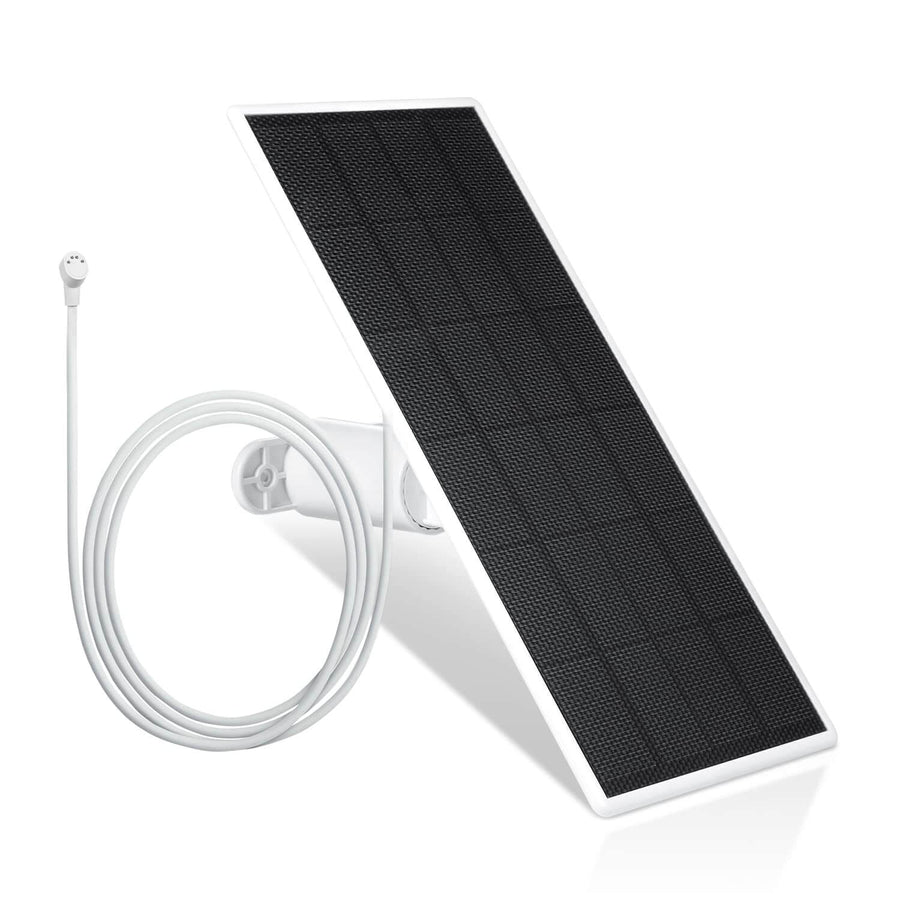
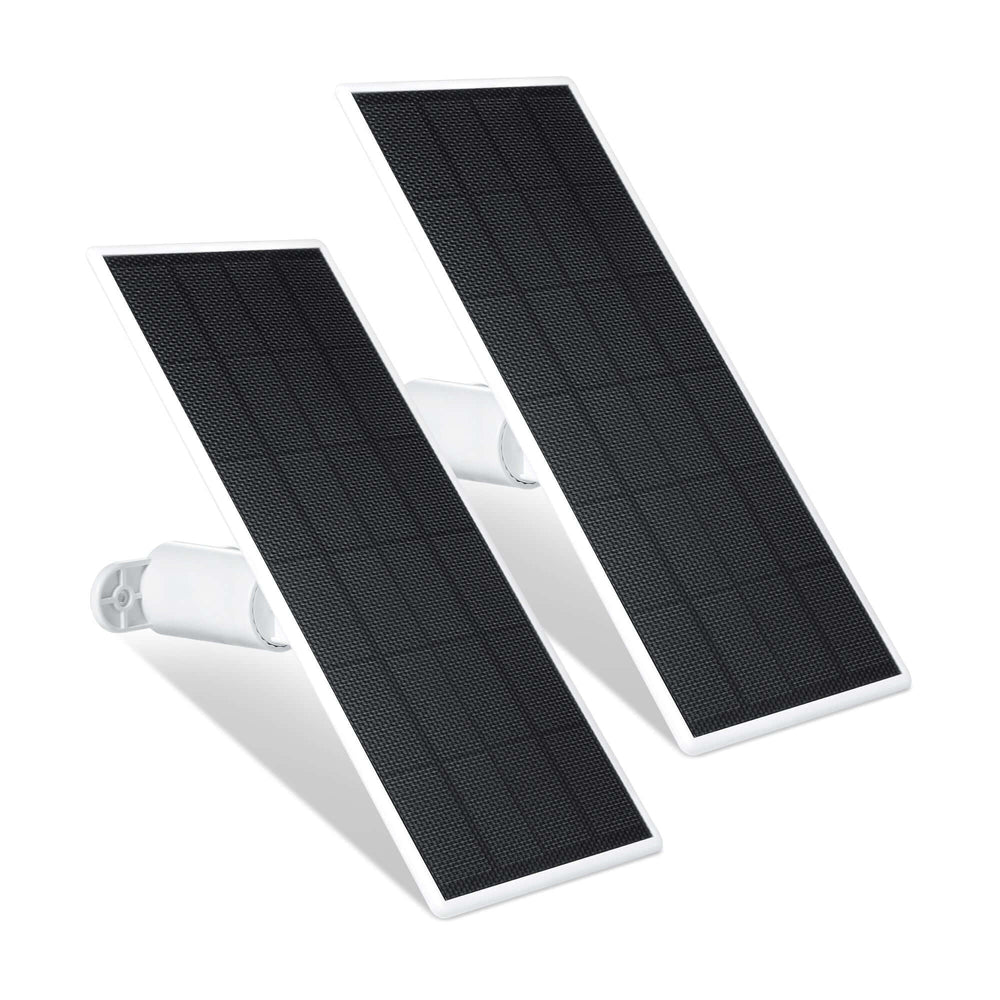
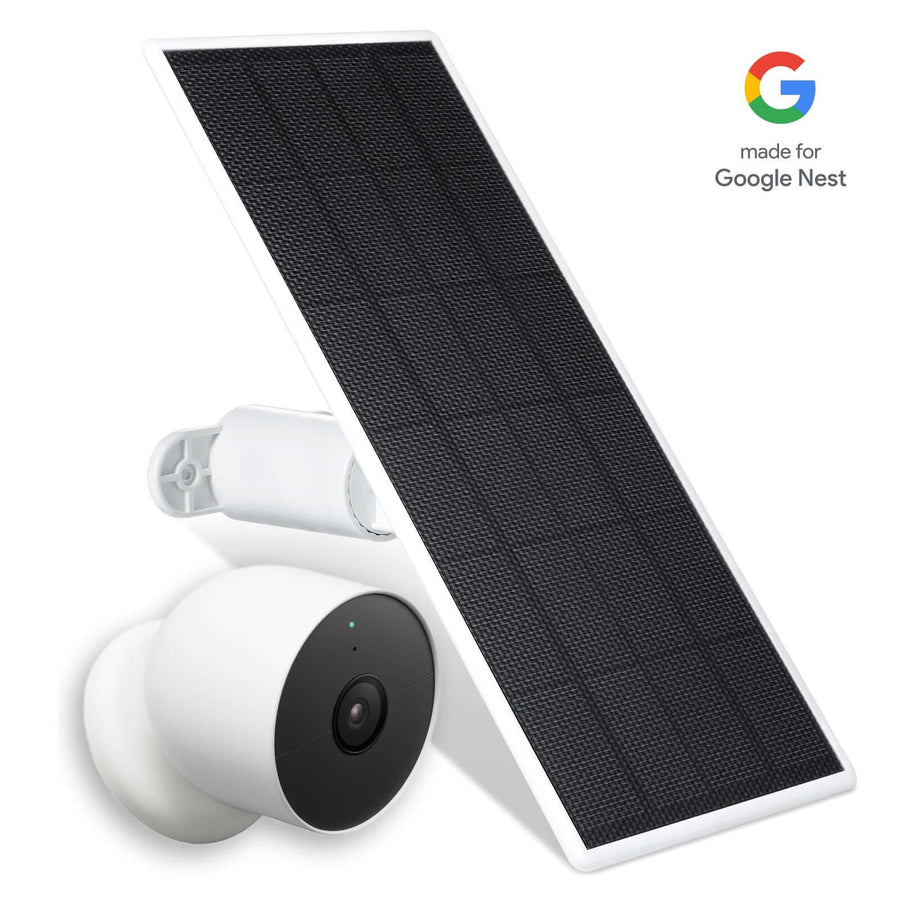
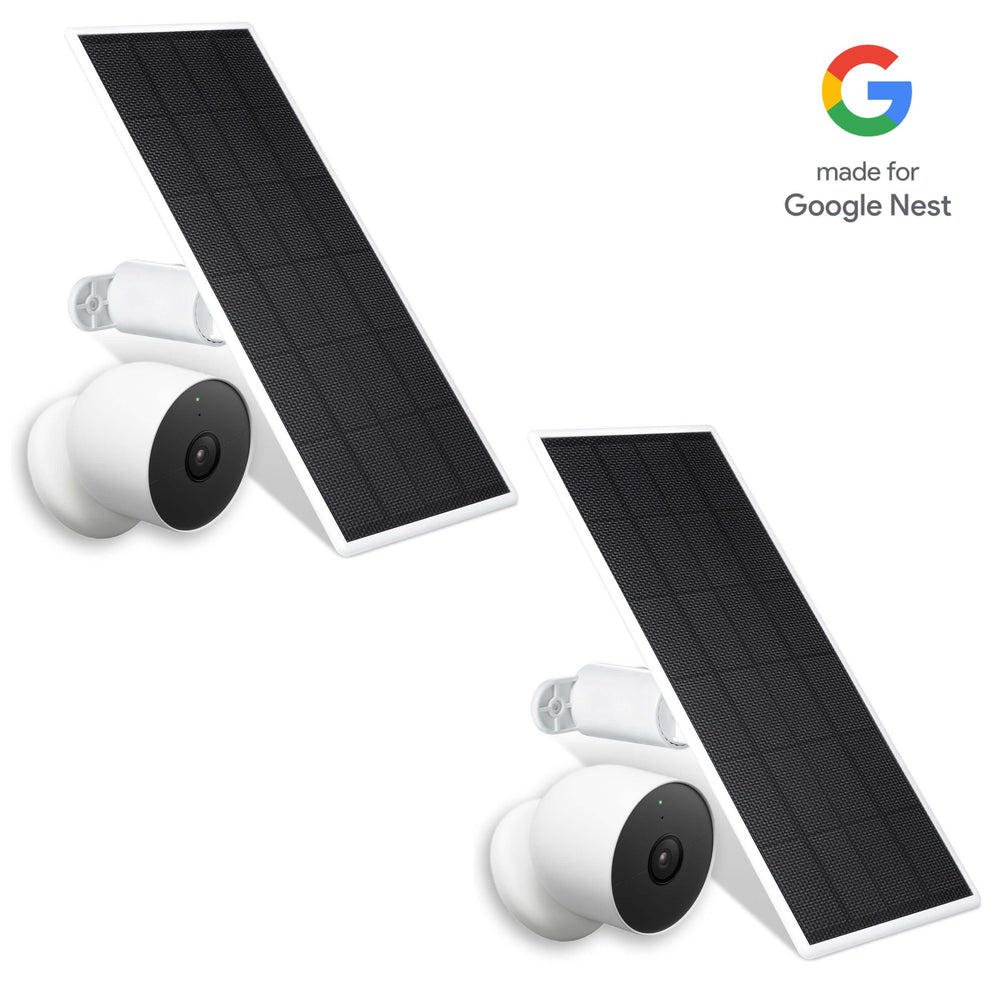
Consider using Wasserstein Solar Panels to maintain continuous power for outdoor cameras:

The Nest Camera (Battery) with a Wasserstein solar panel.-
360-degree rotatable mount allows flexible placement for maximum sunlight exposure
-
13.1ft/4m cable provides installation flexibility
-
High-efficiency solar cells capture energy even in low-light conditions, avoiding downtime
-
-
Mounting tips
-
Install cameras higher on walls, ceilings, or under eaves to cover a wider area and reduce tampering.
-
Use included mounting templates to drill accurate holes.
-
Battery-powered cameras should be mounted where they are easy to access for maintenance or recharging.
-
Consider Wasserstein Gutter Mounts or Anti-theft Mounts to elevate cameras and reduce the risk of tampering while maintaining optimal angles.
-
-
Adjusting angles
-
Use the app’s live video feed to fine-tune the camera’s angle.
-
Check for blind spots, glare, or areas that might trigger false motion alerts.
-
Some cameras have motorized heads that can be adjusted remotely through the app.
-
-
Proper placement and careful mounting reduce the need for future adjustments and help maintain a consistent Wi-Fi connection.
Enhancing Night Security and Visibility
Low-light conditions can limit video quality and motion detection effectiveness. Enhancing visibility at night ensures your wireless cameras remain reliable in all conditions.
Strategies to Improve Nighttime Monitoring
-
Built-in night vision
-
Most modern Wi-Fi cameras have infrared or low-light night vision for basic monitoring.
-
Works best when the camera has a clear line of sight with minimal glare.
-
-
External lighting

The Blink Outdoor with the Wasserstein 3-in-1 Wired Smart Floodlight, Charger and Mount-
Use Wasserstein Floodlights to illuminate dark areas:
-
Enhances camera vision in low-light conditions
-
Designed to keep your camera continuously powered, eliminating frequent battery replacements
-
Secure, adjustable mount ensures optimal angles
-
-
Motion-activated lights also deter intruders and improve motion detection accuracy.
-
-
Correct lighting placement
-
Avoid pointing lights directly at the camera lens to prevent glare.
-
Focus on entry points, walkways, and high-traffic areas for maximum coverage.
-
When combined with two-way audio, night vision, and motion alerts, enhanced lighting provides stronger surveillance and better situational awareness during nighttime hours.
Cloud Storage, Remote Access, and Smart Features
One of the main advantages of wireless security camera systems is the ability to access footage and control your cameras remotely, anywhere there’s an internet connection.
Key Benefits of Remote Access
-
Live video streaming
-
View real-time footage from a smartphone or computer.
-
Useful for monitoring children, pets, or property while away from home.
-
-
Cloud storage
-
Saves footage securely off-site to prevent loss if the camera is stolen or damaged.
-
Many services allow custom retention periods and video quality settings.
-
-
Smart camera features

Customizing motion zones via the Blink app.-
Motion zones let you focus alerts on critical areas.
-
Alert scheduling prevents unnecessary notifications during routine activity.
-
Two-way audio allows communication with visitors or deters potential intruders.
-
Some cameras integrate with smart home ecosystems, enabling control of multiple devices from one app.
-
Using cloud storage and smart features increases the value of your wireless security camera setup, making monitoring more flexible and convenient.
Securing Your Wi-Fi-Connected Security Cameras
A connected camera is only useful if it is secure. Protecting your Wi-Fi cameras and network ensures long-term safety. Here are some essential security steps to ensure you and your cameras are protected from possible tampering.
-
Change default credentials
-
Update usernames and passwords immediately after setup.
-
Use unique, strong passwords for both the camera and your wireless router.
-
-
Enable strong encryption
-
Configure your Wi-Fi settings for WPA2 or WPA3 encryption.
-
Disable features like WPS or remote management if not needed.
-
-
Network isolation
-
Set up a separate network for smart devices to protect personal computers and sensitive data.
-
-
Firmware updates
-
Regularly check and update camera and router firmware to patch vulnerabilities.
-
Enable automatic updates if available.
-
-
Two-factor authentication
-
Adds an extra layer of protection for your cloud accounts and app access.
-
These steps strengthen your home security and reduce the risk of unauthorized access.
Troubleshooting Common Wireless Security Camera Issues
Even with careful installation, trouble can arise during setup. Most wireless security cameras require a compatible app to be installed on your smartphone or tablet for setup and management, so if you have trouble, make sure you have the correct app installed. Understanding common problems allows you to fix them quickly. Here are some common problems and solutions:
-
-
Check signal strength at the installation location.
-
Move the camera closer to the router or use a Wi-Fi extender.
-
Verify the correct Wi-Fi password and network compatibility.
-
-
Frequent disconnections or lag
-
-
May indicate network congestion or insufficient upload speed.
-
Reduce interference, update firmware, or enable QoS for camera traffic.
-
-
Camera won’t power on
-
-
Inspect the battery, power adapter, and outlet.
-
Recharge or replace batteries if needed.
-
-
Software or setup errors
-
-
Perform a factory reset and repeat the Wi-Fi setup.
-
If you cannot access the camera's web interface, check the camera's IP address settings.
-
If problems persist, contact customer support for assistance.
-
Regular troubleshooting prevents minor issues from affecting long-term performance.
Camera Maintenance and Long-Term Optimization
Ongoing care ensures your wireless cameras continue working reliably. Here are some basic maintenance tips to help you ensure your camera works as intended:
-
Clean camera lenses and housing periodically to maintain video clarity.
-
Check mounts and screws to prevent movement or misalignment.
-
Monitor battery levels or solar charging to avoid downtime.
-
Test motion alerts, two-way audio, and live video every few months.
-
Adjust camera placement if network conditions or home layout change.
Routine maintenance keeps your wireless security camera system performing optimally over time.
Final Setup Checklist
Before considering installation complete, review these critical points:
-
All cameras are powered and connected to the Wi-Fi network.
-
Live video streams without lag or interruptions.
-
Motion alerts, night vision, and two-way audio work properly.
-
Cloud storage access and remote control are confirmed.
-
Wi-Fi settings and security configurations are properly set.
Completing this final check ensures your wireless security camera system is fully operational and ready to protect your home or property.
Frequently Asked Questions (FAQ)
How do I connect my security camera to Wi-Fi?
Power on the camera, put it in setup mode, and open the companion app. Add the camera through the app, pair it using a QR code or setup code, select your Wi-Fi network, and enter the password. Wait for the connection to complete and confirm by checking the live video feed in the app.
Why is Wi-Fi signal strength important for cameras?
A strong Wi-Fi signal ensures smooth video streaming, timely motion alerts, and reliable cloud uploads. A weak Wi-Fi network can cause dropped feeds, lag, or disconnections. Position cameras close to your router during setup, avoid obstructions, and consider Wi-Fi extenders or mesh systems for larger areas.
Can wireless cameras work without a power outlet?
Yes, battery-powered or solar-supported cameras operate without constant AC power. Batteries provide flexible placement, while solar panels reduce downtime and recharging needs. For continuous performance, combine battery cameras with solar panels or place plug-in cameras near accessible outlets.
What features should I look for in a Wi-Fi camera?
Key features include high video resolution (1080p+), wide field of view, night vision, accurate motion detection, and two-way audio. Smart alerts, motion zones, and integration with cloud storage or smart home systems improve monitoring and convenience. Choose features based on coverage goals and installation environment.
How do I optimize my Wi-Fi network for cameras?
Ensure sufficient upload speed (around 2 Mbps per 1080p camera), central router placement, and minimal interference. Use Wi-Fi extenders for dead zones, prioritize camera traffic with QoS, and avoid overloading the network with too many devices. Regularly check for network congestion and firmware updates to maintain stability.
Leave a comment