

Does Ring Doorbell Record Audio Indoors or Outside?
Yes, a Ring Doorbell can record sound both outside and in nearby indoor areas when triggered, provided audio recording is enabled.
By default, a Ring device captures audio and video together during motion, when someone presses the doorbell, or when you start live view. That means your video doorbell doesn’t just capture images. It can also capture audio from conversations happening near your door.
In many cases, home security cameras can capture voices from several feet away, including from the street or even inside a house if doors or windows are open. This makes the device powerful for security, but it also raises important legal and privacy concerns.
Audio and video surveillance devices like Ring Doorbells are often used to enhance safety by deterring crime and providing evidence if incidents occur.
How Ring Doorbells Record Audio (All Triggers Explained)
To understand how a ring doorbell works as a recording device, you need to know what triggers it. The system is not always recording, but when it activates, it records both video and sound together.
Motion-Activated Recording

The most common trigger is motion.
-
When motion is detected, the device starts recording.
-
By default, it records both video and audio.
-
The clip continues until:
-
Motion stops, or
-
The maximum clip duration is reached
-
This means if someone is standing near your door, talking, or even having an argument, your Ring Doorbell may capture audio from that instance automatically.
Doorbell Press Activation

When a visitor presses the doorbell:
-
The camera begins recording.
-
It captures:
-
The person at the door
-
Surrounding sound and conversations
-
This is one of the clearest use cases where audio recording is expected.
Live View and Two-Way Talk

You can also manually access your Ring device through the Ring app.
-
Open live view from your phone
-
You can enable two-way talk to communicate in real time
To speak:
-
Tap activate once
-
This temporarily enables the microphone
This feature allows you to speak to a visitor without permanently enabling audio. Once the session ends, audio settings remain as they were.
How Far Can a Ring Doorbell Capture Audio?
A common question is how far a video doorbell can record sound.
In a typical setup:
-
A ring doorbell can capture audio up to around 20 feet.
-
In quiet conditions, voices are clearer.
-
In noisy environments, clarity decreases
Real-World Example
Imagine a person walking past your house while talking on their phone. If they are within range, your security cameras could capture that conversation, even if they never approached your doorbell.
In another instance, if your front door is open at night, your Ring device might even capture audio from inside your home.
👉 This is why users must be aware of how sensitive these devices are.
Does Ring Record Continuously or Only on Events?
Most ring doorbell models are event-based recording devices, relying on motion-activated clips and live view rather than true 24/7 continuous recording.
Event-Based Recording (Default)
-
Records only when triggered by:
-
Motion
-
Doorbell press
-
Live view
-
-
Audio and video are recorded together
Continuous Recording (Limited Feature)

Some advanced setups allow continuous recording, but for round-the-clock coverage many users instead pair compatible cameras with a Ring Solar Panel for Spotlight Cam and Stick Up Cam to keep them powered and ready to record whenever events occur:
-
Only certain models support it
-
It requires a subscription
-
Not all compatible ring device models have this feature
For most users, your ring device is not always listening, but when events occur, it records everything at once.
Do You Need a Subscription for Audio Recording?
A major limitation of the Ring app is that many essential audio recording and playback features depend on a paid subscription. While your ring device will still function as a recording device without one, your ability to access, store, and manage recordings is significantly restricted.
What You Get With a Subscription
When you subscribe to a Ring Protect Plan, your video doorbell becomes a much more complete security solution. You gain full control over both video and audio data captured during events.
With a subscription, you can:
-
Access recorded clips from the cloud
-
Review audio recording alongside video footage.
-
Download and share clips with others or even the police if needed.
-
Store recordings for a set period
-
Use advanced features tied to your ring device
This is especially important if you need to prove something happened—whether it’s a delivery dispute, a suspicious person, or an argument captured near your door.
What Happens Without a Subscription
Without a subscription, your ring doorbell still works, but in a very limited way.
You can:
-
Open live view from your phone.
-
Use two-way talk to speak to a visitor
However, you cannot:
-
View past recordings
-
Store clips in the cloud
-
Review audio after an event
This means if your camera captures important sounds or conversations, you won’t be able to retrieve them later.
Important Limitation: Audio Controls May Be Restricted
One often overlooked detail is that:
-
To turn audio streaming or recording on/off, you may need a compatible ring device with an active plan
-
The recording toggle might not be fully accessible otherwise
This creates a situation where:
-
The device is capable of recording.
-
But your ability to control or review that audio is limited
👉 Bottom line: without a subscription, your ring device acts more like a live monitoring tool than a full recording device.
Note: Some audio control features may require a specific Ring device model or an active subscription. Check your device's compatibility and plan status before expecting full audio functionality.
How the Ring App Controls Audio Streaming vs Recording
The Ring app gives you detailed control over how your Ring device handles audio, but many users misunderstand the difference between audio streaming and audio recording. To access these features, open the app to the main dashboard or interface before navigating to audio controls.
Understanding this distinction is critical if you want to manage privacy, prevent sound capture, or troubleshoot missing audio.
Audio Streaming vs Audio Recording
Although they sound similar, these two features behave very differently.
Audio Streaming
-
Happens during live view
-
Transmits sound in real time to your phone.
-
Requires an active internet connection
-
Not saved unless recording is enabled
Audio Recording
-
Happens during triggered events
-
Stored in the cloud (with subscription)
-
Includes both video and audio
-
Can be reviewed later
👉 Simple way to think about it:
-
Streaming = live conversation
-
Recording = saved evidence
Where to Find Audio Controls in the Ring App
To manage these settings, you need to navigate through the ring app interface carefully.
Follow this path:
-
Open the Ring app
-
Go to the main dashboard.
-
Select your ring device.
-
Tap the device settings tile.
-
Open the device's settings.
-
Tap select privacy settings
Inside this menu, you’ll find:
-
The recording toggle
-
Controls to turn audio streaming on or off
-
Additional privacy-related options
This is the central location where you can adjust how your device handles audio recording.
Understanding “Activate Once” for Two-Way Talk
Even if you choose to disable audio, your ring doorbell still allows temporary communication.
Here’s how it works:
-
Open live view
-
Tap activate
-
This enables two-way talk temporarily
Once the session ends:
-
The microphone turns off.
-
Your original settings remain unchanged
This is useful if:
-
You want privacy most of the time
-
But still need the ability to speak to a visitor when necessary
Step-by-Step: How to Turn Audio On or Off in the Ring App
If you want full control over audio recording, follow these detailed steps.
Step 1: Open the App
-
Open the Ring app on your phone
Step 2: Access Your Device
-
From the main dashboard, select your ring device
Step 3: Enter Settings
-
Tap the device settings tile.
-
Open the device's settings
Step 4: Go to Privacy Controls
-
Tap select privacy settings
Step 5: Adjust Audio Settings
-
Locate the recording toggle
-
Turn audio streaming ON or OFF
Optional: Temporary Communication
-
During live view, tap activate.
-
This enables two-way talk without permanently changing settings
Pro Tip: Keep Your Device Powered While Adjusting Settings
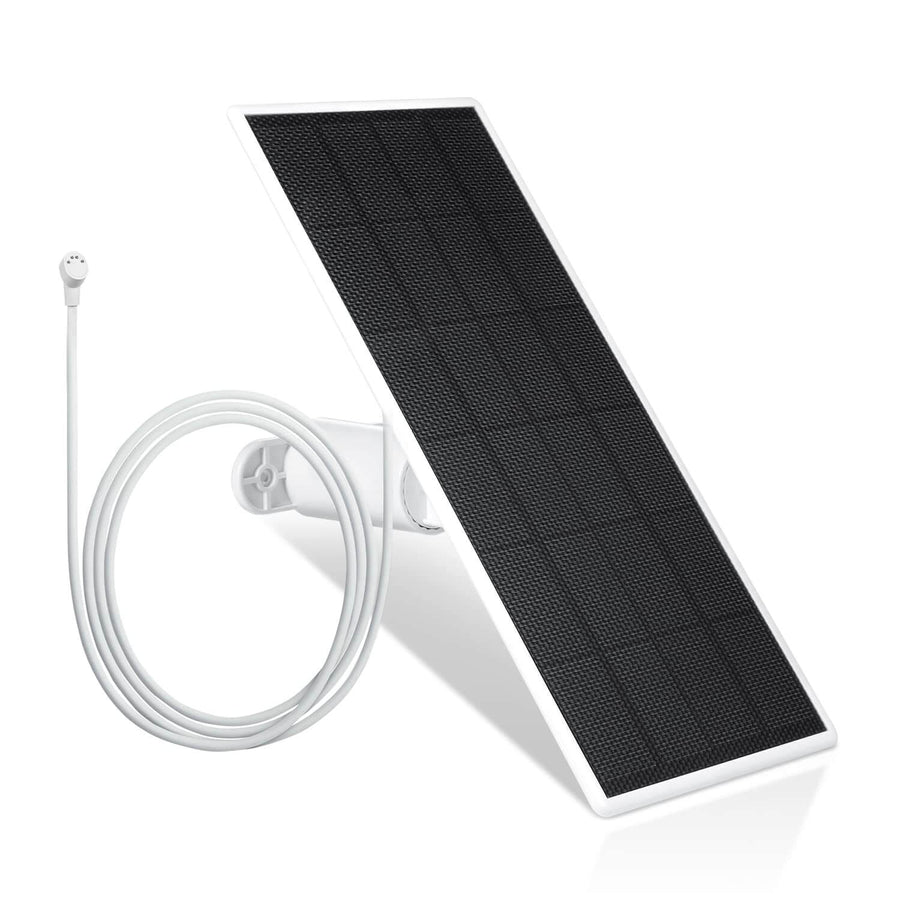
Frequent events and recording can drain your battery quickly, especially if audio is enabled, so knowing how to properly charge your Ring camera battery helps maintain reliable performance.
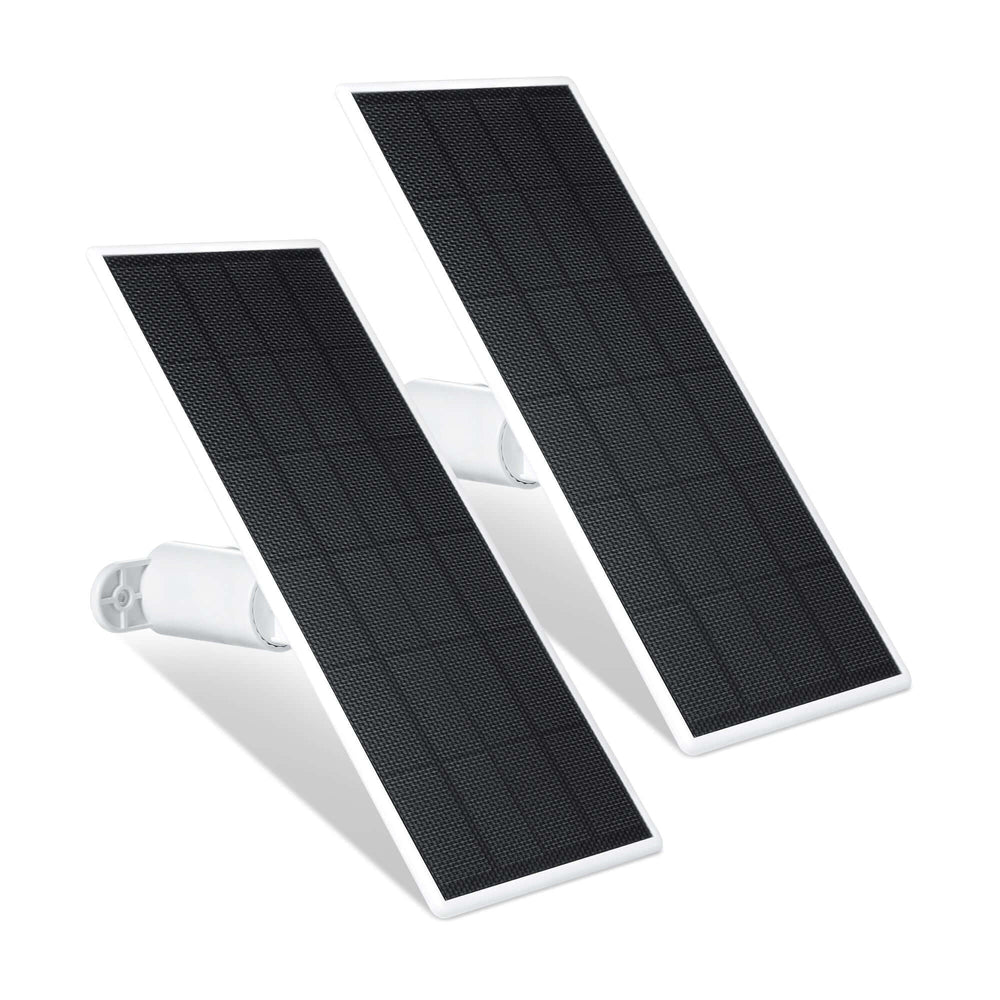
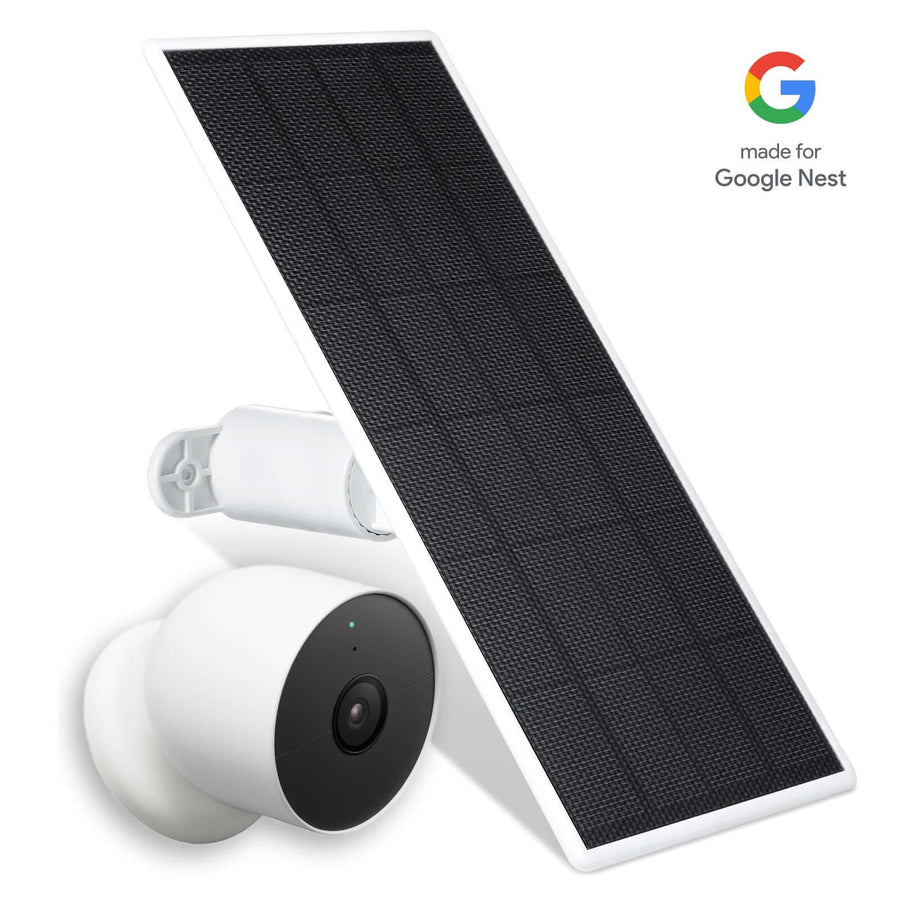
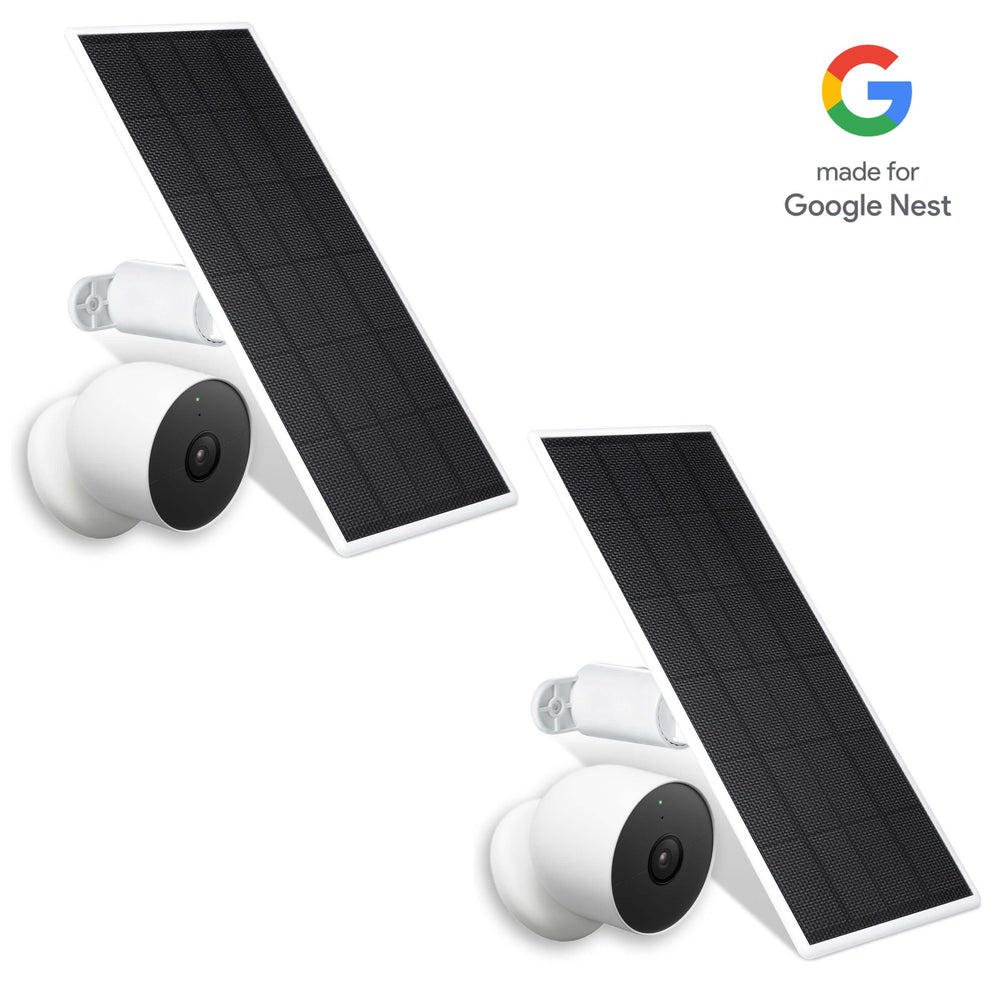
To avoid interruptions, consider using solar power accessories to reduce manual recharging, such as a universal solar charger upgrade for your battery doorbell, along with:
-
Wasserstein Universal Solar Charger for Ring Battery Doorbell – see our step-by-step solar charger installation guide
-
Provides continuous solar power
-
Reduces the need to remove your device for charging
-
Ensures your camera remains active day and night
-
-
Wasserstein Battery Charging Station
-
Charge multiple batteries at once
-
Keep backups ready so your ring device never goes offline
-
These accessories help maintain consistent security coverage while you fine-tune your settings, and broader solar panel solutions for cameras and doorbells can further reduce maintenance while keeping your system powered.
Privacy Zones: What They Do (And What They Don’t Do)
Privacy zones are one of the most misunderstood features in the Ring app. They help protect visual privacy, but they do NOT fully protect audio privacy.

What Privacy Zones Actually Do
When you set up privacy zones, you instruct your camera to:
-
Block certain areas from the video.
-
Prevent those areas from appearing in recordings.
-
Limit what is visually captured.
You can create Privacy Zones in the Ring app to block specific areas from being shown or recorded.
This is useful for:
-
Neighboring properties
-
Public sidewalks
-
Areas you don’t want to monitor
What Privacy Zones Do NOT Do
This is where many users get confused.
Privacy zones do NOT:
-
❌ Prevent sound from being recorded
-
❌ Stop the device from detecting motion
-
❌ Block background conversations
You can also adjust the motion settings to avoid detection in certain areas, even if they are not included in Privacy Zones.
Even if an area is visually hidden, your ring device may still capture audio from that direction.
Example Scenario
Let’s say you set a privacy zone to cover your neighbor’s yard.
-
The video feed will hide that area.
-
But if your neighbor is standing nearby and speaking, your camera may still record the sound
This is especially important in quiet environments where voices travel easily. Even if the video is blocked, unwanted or sensitive audio—sometimes referred to as 'trash'—can still be recorded, raising privacy concerns about surveillance and data misuse.
Device Limitations
Not every compatible ring device supports privacy zones.
Additionally:
-
Once a clip is recorded, you cannot edit it.
-
Audio cannot be removed from stored footage
Legal and Privacy Considerations for Ring Audio Recording
Using a video doorbell like the Ring Video Doorbell, which records audio, comes with legal responsibilities. While it’s built for security, recording conversations can raise privacy concerns if misused.
In New York, the law is straightforward. Under NY Penal Law §250.05, recording conversations without consent is unlawful. CPLR §4506 also makes illegally obtained recordings inadmissible in court.
Intent matters. Courts may evaluate the conduct of the homeowner, including whether they acted intentionally to record conversations and whether proper notice or consent was given. Using a doorbell camera for general security is typically acceptable. Intentionally recording private conversations may not be.
Consent is key. Recording may be allowed if one party consents or if people are clearly informed. This is known as implied consent.
A simple way to establish notice:
-
Post a visible sign that audio recording is in use; if a private homeowner posts such signs, it may constitute implied consent for those nearby
-
Inform visitors before they approach
Used properly, audio-enabled doorbells can improve security without violating privacy.
Why Smart Doorbells Create Legal Gray Areas
Modern devices like the Ring Video Doorbell blur the line between security and surveillance. Many privacy laws were written before always-on, internet-connected cameras became common.
What makes them tricky is how they operate:
-
Audio can be captured automatically, without user action
-
People nearby may not realize they’re being recorded.
-
Conversations can be recorded incidentally, not intentionally
Because of this, legal protections aren’t always clear-cut. In many cases, laws are still catching up, leaving homeowners and bystanders in a gray area.
A Common Real-World Scenario
Imagine someone outside your home having a loud argument. Your doorbell records the audio.
That situation quickly raises questions:
-
Was consent given?
-
Was the recording intentional or incidental?
-
Can law enforcement use the footage?
The answer often depends on context. In some cases, recordings may not be admissible in court, but they can still provide useful evidence or help establish what happened.
Reducing or Disabling Audio Recording
If privacy is a concern, adjusting your device settings can make a big difference. Most changes can be done directly in the app without affecting core security features.
Key adjustments include:
-
Turning off audio recording entirely
-
Lowering motion sensitivity to avoid unnecessary triggers
-
Adjusting detection zones to focus only on your property
-
Reducing clip length to limit how much is recorded
These small tweaks help minimize unintentional audio capture.
Why Placement Matters
How and where your doorbell is installed directly affects what it records. Even a slight angle change can reduce unwanted audio pickup.
To improve privacy:
-
Angle the camera away from public spaces
-
Avoid pointing directly at neighbors’ doors or windows
-
Limit exposure to busy streets or sidewalks
Accessories like the Wasserstein Adjustable Mount & Wall Plate can help fine-tune positioning, making it easier to focus on your property while avoiding unnecessary recording, and pairing these with devices such as the Ring Spotlight Cam Battery and Stick Up Cam can further optimize your overall security setup.
Additional Privacy Controls
For more control over your data, a few extra steps can go a long way:
-
Enable encryption (if supported by your device)
-
Limit who can access recordings
-
Consider systems that support local storage instead of cloud-only options
These measures add another layer of protection, especially for sensitive recordings.
Accessories That Improve Privacy and Reliability
Your setup isn’t just about the camera. Accessories can directly impact both performance and privacy.
-
Continuous power reduces blind spots. If your device shuts off, it stops recording altogether. A solar option like the Wasserstein Universal Solar Charger or a Ring Video Doorbell 3/3 Plus/4 Solar Charger Mount helps keep it running consistently, even in low-light conditions.
-
Backup batteries prevent downtime. Using something like the Wasserstein Battery Charging Station ensures you always have charged batteries ready, avoiding gaps in coverage.
-
Better angles improve control. Tools such as the Wasserstein Adjustable Mount let you direct the camera more precisely, helping you avoid capturing unnecessary conversations while still covering key areas.
Ring vs. Other Video Doorbells: Privacy Trade-Offs
Choosing between Ring and other video doorbells often comes down to how you balance convenience and privacy.
Ring devices typically offer:
-
Cloud-based storage
-
Strong app integration
-
Easy remote access
-
Subscription-based full features
Other doorbells may provide:
-
Built-in local storage
-
No monthly fees
-
Greater control over recorded data
The trade-off is straightforward. Cloud storage is convenient and easy to share, but can raise privacy concerns. Local storage offers more control but may limit remote access and flexibility.
FAQs
Does a Ring doorbell record audio by default?
Yes. By default, a ring doorbell records audio and video together when triggered by motion, a doorbell press, or live view. You can change this anytime in the Ring app under device settings.
Can I disable audio recording on my Ring device?
Yes. Open the Ring app, go to your device, tap the device settings tile, then select privacy settings. From there, use the recording toggle to disable audio and stop your device from capturing sound.
How far can a Ring doorbell capture audio?
Most ring devices can capture audio from up to around 20 feet away in normal conditions. Background noise, walls, and weather can affect how clearly the camera records conversations.
Do privacy zones stop audio recording?
No. Privacy zones only block video from certain areas. Your Ring Doorbell can still record sound and pick up conversations, even from areas hidden from view.
Do I need a subscription to access audio recordings?
Yes. Without a subscription, you cannot access, review, or store audio recording clips in the cloud. You can only use live view and two-way talk in real time.
Can I still use two-way talk if audio is turned off?
Yes. During live view, you can tap activate to temporarily enable two-way talk. This lets you speak to a visitor even if audio streaming is disabled.
Is it legal to record audio with a Ring doorbell?
It depends on local legal rules. Some areas require consent before recording conversations. Always check your local laws and consider posting a notice to make people aware of audio recording.
Leave a comment