

Arlo Camera Not Connecting to WiFi - Easy Fixes
- 2.4 GHz compatibility is mandatory — Most Arlo cameras cannot connect to 5 GHz networks during setup. Ensure your phone is on a 2.4 GHz band and consider temporarily disabling "dual-band steering" on your router to prevent connection failure.
- Distance is the primary setup hurdle — For successful discovery, keep your camera within 10–15 feet of the router during the initial sync. Once the connection is established, you can move it to its permanent outdoor location.
- Low battery prevents successful pairing — If your battery is below 25%, the camera may lack the power to maintain a stable Wi-Fi handshake. Fully charge the device or use a magnetic charging cable to ensure consistent power during the setup process.
- QR code scanning requires precision — If the camera won't "chirp," increase your phone's screen brightness to 100%, clean the camera lens, and hold the phone 4–8 inches away. Wait for the blinking blue LED before attempting to scan.
- Signal interference kills reliability — Thick walls, mirrors, and large appliances significantly degrade Arlo's signal (RSSI). Using adjustable metal mounts or gutter mounts can help you reposition the camera away from physical obstructions to improve Wi-Fi performance.
If your Arlo camera not connecting to WiFi issue is preventing your security system from working properly, you are not alone. Many Arlo cameras fail to connect during setup due to weak Wi-Fi signals, incorrect network settings, QR code scanning issues, or outdated firmware.
The good news is that most connection problems can be fixed in a few minutes with the right troubleshooting steps. Whether you are setting up a new Arlo device, reconnecting after changing your Wi-Fi router, or troubleshooting an Arlo Pro or Arlo Q camera - even if you have already attempted to connect your Arlo camera but are still experiencing issues - this guide will help you complete the setup process successfully.
In this guide, you will learn:
- How to connect your Arlo camera directly to a Wi-Fi router
- Common QR code and discovery fixes
- How to troubleshoot 2.4 GHz network issues
- When to perform a factory reset
Start With These Quick Arlo Wi-Fi Fixes
Most Arlo setup issues are caused by temporary router glitches, low battery levels, or weak Wi-Fi signals. Before attempting advanced troubleshooting, start with these basic fixes.
Restart Your Router and Camera

Power cycling often restores failed connections and refreshes network communication between your Arlo device and Wi Fi router.
Power cycling the router and camera can resolve connectivity issues; unplug the router for 30 seconds and remove the camera's battery for 10 seconds.
After reconnecting power:
-
Wait several minutes for the router to fully restart
-
Reinsert the camera battery
-
Open the Arlo app again
-
Retry the setup process
If you are using an Arlo Pro or other battery-powered camera, ensure the battery is fully charged before continuing. This helps avoid confusing Wi‑Fi issues that are actually caused by low power.
Move the Camera Closer During Setup
Weak signals can prevent the camera from being discovered properly.
To troubleshoot an Arlo camera not connecting to Wi-Fi, ensure the phone is connected to a 2.4GHz network and bring the camera within 10-15 feet of the router.
For best results during setup:
-
Place the camera in the same room as the router
-
Avoid thick walls and large furniture
-
Keep the mobile device near the camera
-
Stay away from metal objects and appliances
Check Battery and Firmware Status

Low battery and outdated firmware can interrupt setup or cause random disconnects.
Important things to check:
-
Low battery levels below 25% can cause connectivity drops for Arlo cameras.
-
Firmware updates may fix connectivity bugs for Arlo cameras.
Open the Arlo app and:
-
Select your device
-
Check battery percentage
-
Look for firmware updates
-
Install updates before retrying setup
Helpful Charging Accessories
Outdoor cameras often disconnect because of inconsistent charging or drained batteries, so it’s important to address any Arlo Pro charging issues before assuming there is a Wi-Fi problem.
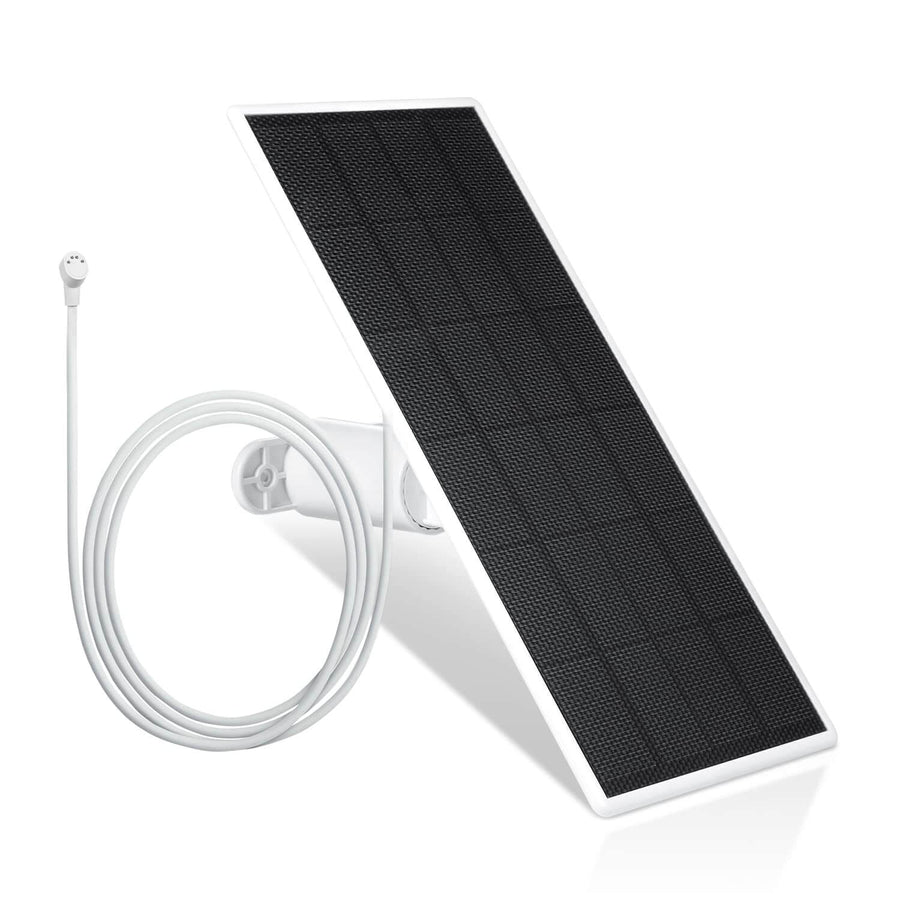
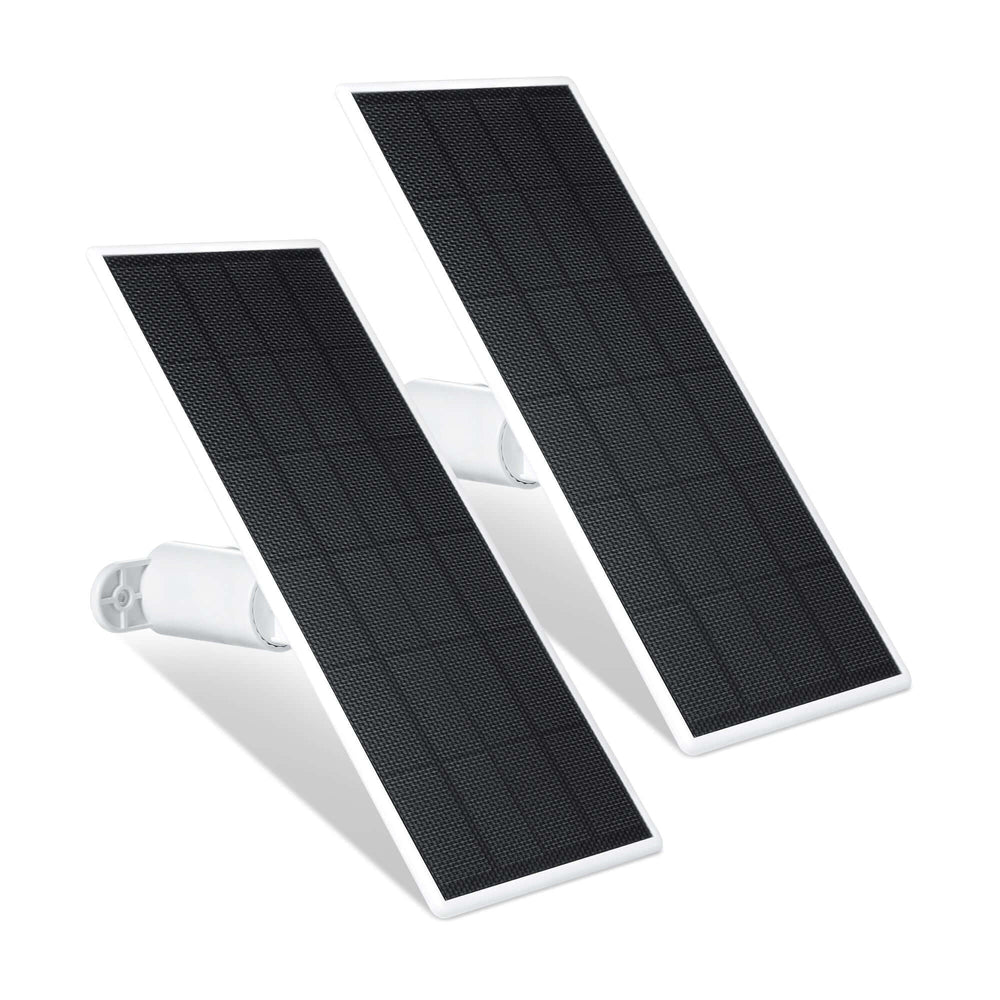
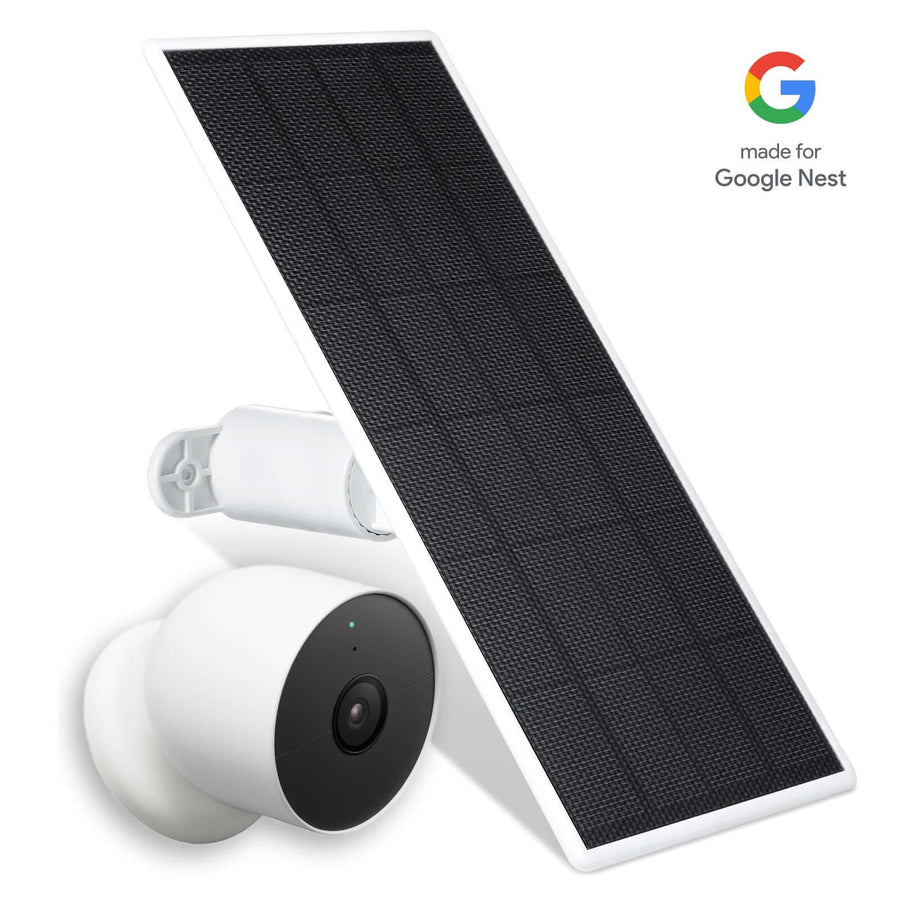
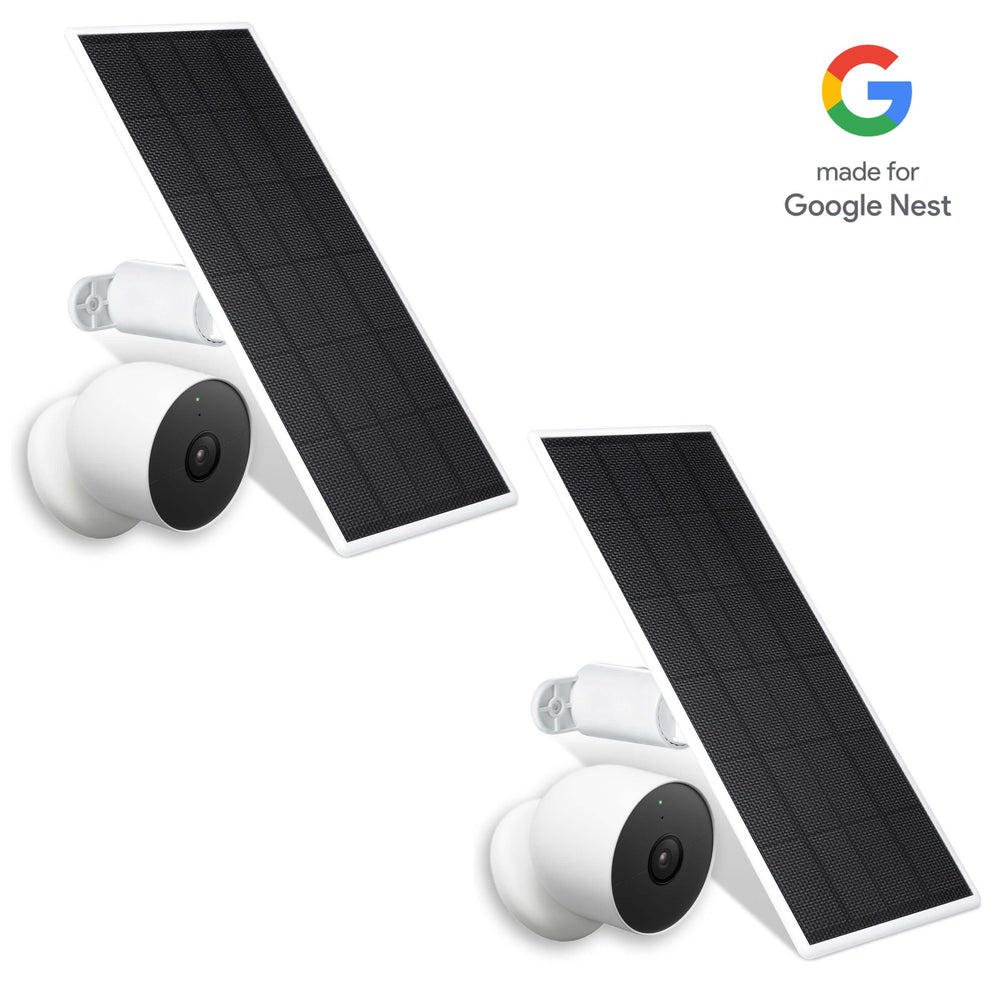
Wasserstein Solar Panel for Arlo Essential Spotlight / XL Spotlight and the dedicated Arlo solar panel for Arlo Ultra, Pro, and Essential
Helpful for:
- Continuous outdoor charging
- Reducing battery-related disconnects
- Keeping cameras powered year-round
Wasserstein Magnetic Arlo Charging Cable for Arlo Ultra / Ultra 2 & Pro 3 / Pro 4
Helpful for:
- Weatherproof charging
- Faster charging speeds
- Reducing frequent battery removal
Make Sure Your Arlo Camera Is Using a 2.4 GHz Wi-Fi Network
One of the most common setup problems occurs when the camera or mobile device connects to a 5 GHz network instead of a 2.4 GHz network.
Confirm Your Router Supports 2.4 GHz
Verify that your Arlo device is connecting to a 2.4 GHz Wi-Fi network. Some modern routers use a single network name for both 2.4 GHz and 5 GHz bands.
If setup keeps failing:
-
Disable band steering temporarily
-
Separate the Wi-Fi bands
-
Rename the 2.4 GHz network
-
Retry the setup process
Connect Your Mobile Device to the Same Network
Ensure that your phone or mobile device is connected to the same 2.4 GHz Wi-Fi network you want the camera to join.
Before continuing:
-
Open your phone Wi-Fi settings
-
Verify the connected network
-
Disconnect from mobile data if needed
-
Ensure the 2.4 GHz network is active
Verify the Wi-Fi Name and Password
Incorrect credentials are another major cause of failed setup attempts. You must verify that you typed the correct Wi-Fi network SSID and password during the installation process.

Keep these tips in mind:
-
SSIDs and passwords are case-sensitive
-
Avoid typing errors
-
Remove unnecessary special characters temporarily
-
Double-check saved passwords in your phone
If you recently changed internet providers or installed a new router, update your saved Wi-Fi settings in the Arlo app before reconnecting the device.
Check Signal Strength and Router Placement
Even if your Wi-Fi network is working, poor signal quality can prevent Arlo cameras from connecting reliably.
Remove Signal Interference
Physical barriers such as thick walls or metal objects can degrade Wi-Fi signal strength.
Common interference sources include:
-
Brick or concrete walls
-
Mirrors
-
Metal shelving
-
Microwave ovens
-
Cordless phones
-
Large appliances
If possible:
-
Move the router to a central location
-
Raise the router higher off the floor
-
Avoid placing the router inside cabinets
Check RSSI and Signal Quality
For best performance, ensure the Arlo camera's RSSI (signal strength) is above -55dBm. The Arlo app includes a Wi-Fi troubleshooting tool to identify speed issues or signal gaps.
You can use the app to:
-
Test Wi-Fi strength
-
Identify dead zones
-
Check upload speed
-
Verify network stability
Keep Devices Within Range
Make sure both your mobile device and Arlo camera are positioned within range of your Wi-Fi router’s signal.
During setup:
-
Keep the camera within 10–15 feet of the router
-
Avoid outdoor installation until setup is complete
-
Test the connection indoors first
Improve Camera Placement
Better camera positioning can improve both Wi-Fi stability and viewing coverage with the right hardware and placement.

Wasserstein Adjustable Metal Arlo Wall Mounts for Arlo Pro / Pro 2 / Pro 3 / Pro 4 & Ultra / Ultra 2
Benefits:
- 360-degree swivel positioning
- Easier signal optimization
- Indoor and outdoor installation
Wasserstein Weatherproof Gutter Mount for Arlo Pro / Pro 2 / Pro 4 & Ultra / Ultra 2
Benefits:
- Elevated viewing angles
- Better signal placement
- Tool-free repositioning
Benefits:
- Flexible indoor/outdoor positioning
- Improved viewing coverage
- Adjustable mounting angles
Fix QR Code and Device Discovery Problems
QR code scanning issues are common during the Arlo setup process. If the app cannot discover your camera, check the following setup requirements carefully.
Make Sure the LED Is Blinking Blue
Make sure the camera LED is blinking blue while the camera is being discovered.
If the LED stops blinking:
-
Press the sync button again
-
Restart the setup process
-
Wait for the blinking blue light before scanning
Improve QR Code Scanning
For successful QR code scanning:
-
Increase phone brightness
-
Hold the phone steady
-
Clean the camera lens
-
Keep the QR code 4–8 inches away
-
Avoid glare on the screen
After scanning:
-
Listen carefully for the confirmation chime
-
Do not continue setup until you hear the sound
Check Mobile Device Permissions
Some phones block setup permissions automatically.
Verify that:
-
Bluetooth is enabled
-
Camera permission is allowed
-
Location permission is enabled
-
The Arlo app is updated
Disable VPN Connections
VPN services can interfere with communication between the Arlo app and your camera during setup.
How to Connect Your Arlo Camera Directly to a Wi-Fi Router
Many newer Arlo cameras can connect directly to a Wi-Fi router without requiring a base station or SmartHub.
Direct Wi-Fi Setup Steps
To connect your Arlo camera directly to a Wi-Fi router:
-
Open the Arlo app
-
Tap “Add Device”
-
Select your Arlo camera model
-
Choose direct Wi-Fi setup
-
Connect to a 2.4 GHz network
-
Enter the Wi-Fi name and password
-
Scan the QR code
-
Wait for setup to complete
Reconnect After Changing Routers
If changing routers, update the WiFi password in the Arlo app by selecting the camera and changing the network settings.
After changing routers:
-
Remove old network information
-
Verify the new SSID and password
-
Reconnect the camera through the app
-
Retry setup from the beginning if necessary
Base Station vs Direct Wi-Fi
Some Arlo cameras still use a base station depending on the model.
Older models like:
-
Arlo Q
-
Certain Arlo Pro devices
may require different setup instructions compared to newer direct Wi-Fi models.
Advanced Router Settings That May Prevent Arlo Connection
If your Arlo device still cannot connect, your router settings may be blocking communication.
Router Settings to Check
Verify these settings:
-
DHCP is enabled
-
AP isolation is disabled
-
802.11 b/g/n compatibility is enabled
-
WPA2 or WPA2/WPA3 security mode is active
Mesh Wi-Fi Troubleshooting
Mesh networks sometimes interrupt device discovery.
Try these fixes:
-
Restart mesh nodes
-
Connect near the primary router
-
Temporarily disable satellite nodes
-
Retry setup using the main router only
Reduce Wi-Fi Congestion
Too many connected devices can affect setup performance.
Helpful fixes include:
-
Disconnect unused devices temporarily
-
Change Wi-Fi channels
-
Restart the router
-
Pause large downloads during setup
Factory Reset Your Arlo Camera
A factory reset restores the camera to default settings and removes saved network information.
When to Perform a Factory Reset
If you have checked and verified all of the above, you should factory reset your Arlo device.
A reset should only be used after:
-
Verifying the 2.4 GHz network
-
Checking the SSID and password
-
Retrying QR code setup
-
Testing signal strength
-
Restarting the router
Factory Reset Steps
To perform a factory reset:
-
Keep the camera powered on
-
Locate the reset button
-
Press and hold the button
-
Wait for the LED to flash
-
Release the button
-
Re-add the device in the Arlo app
After the reset is complete:
-
Restart setup from the beginning
-
Connect to the correct 2.4 GHz network
-
Verify the Wi-Fi name and password again
Best Accessories to Improve Arlo Camera Connectivity and Placement
Proper camera placement and stable power can improve long-term Wi-Fi reliability, particularly for Arlo Essential cameras and accessories designed to enhance home security.
Wasserstein 2-in-1 Universal Gutter Mount for Camera & Solar Panel
Helpful for:
- Combining solar charging and camera mounting
- Improving outdoor placement
- Reducing battery-related disconnects
- No-drill installation
Combined with solar charging and adjustable mounts, these accessories help Arlo cameras maintain stronger connectivity and more reliable long-term performance.
FAQs
Why won’t my Arlo camera connect to 5 GHz Wi-Fi?
Most Arlo cameras require a 2.4 GHz network during installation. Some newer models may support 5 GHz later, but setup must usually begin on a 2.4 GHz Wi-Fi network connected to the same mobile device.
How close should my Arlo camera be to the router during setup?
For the best results, place the camera within 10–15 feet of the Wi-Fi router during setup. Once the connection is complete, you can move the camera farther away while remaining within signal range.
Why is my Arlo camera not scanning the QR code?
Ensure the LED is blinking blue, increase your phone brightness, clean the camera lens, and hold the QR code at the recommended distance. You should hear a chime after the QR code is successfully scanned.
Can low battery affect Arlo Wi-Fi connection?
Yes. Low battery levels below 25% can cause connection drops, failed setup attempts, and unstable performance. Fully charge the camera before continuing the installation process.
When should I perform a factory reset on my Arlo device?
Use a factory reset only after verifying your 2.4 GHz network, SSID and password, router settings, QR code process, and signal strength. A reset should be your final troubleshooting step.
Leave a comment