

Arlo Camera Offline? Here's How to Fix It
Quick Summary
-
Check Power & Server Status First: Battery-powered cameras frequently drop offline below 25% charge (indicated by a double-blinking amber LED), but always check Arlo's official cloud service status page for server outages before assuming your hardware is at fault.
-
Troubleshoot Connections & Glitches: Clear frozen app statuses by pulling the battery for 10 seconds, and address a solid amber hub light by rebooting your SmartHub; if you recently updated your router or Wi-Fi password, you must input the new credentials via the Arlo app.
-
Isolate Range Issues: Test for physical signal interference from brick or metal by temporarily moving the offline camera into the same room as the router; if it reconnects, reposition the camera or use an adjustable mount to clear obstructions.
Few things are more frustrating than opening the Arlo app and seeing an "Arlo camera offline" message when you need to check your property. Whether your camera suddenly stopped streaming video, keeps disconnecting, or never completed setup correctly, there are several common causes behind an Arlo camera going offline.
In most cases, the issue is related to power, Wi-Fi connectivity, router settings, or communication with an Arlo SmartHub or Arlo Base Station. The good news is that many offline problems can be resolved in just a few minutes.
Why Does an Arlo Camera Go Offline?
An Arlo camera can go offline for several reasons:
-
Lost power or a depleted battery
-
Weak Wi-Fi signal
-
Router or internet service interruptions
-
Problems with an Arlo Base Station or SmartHub
-
Outdated firmware
-
Incorrect Wi-Fi settings after changing a router or password
-
Wireless interference from nearby devices
-
Temporary Arlo service outages
Understanding the root cause will help you restore the connection faster and prevent future issues.
Quick Checks Before Troubleshooting
Before making any major changes, perform a few quick checks.
-
Open the Arlo app and verify that the camera is offline rather than simply experiencing a temporary delay.
-
Check the camera's last online timestamp and look for any error messages.
-
If the motion sensor icon appears stuck or the camera status does not update, the device may be frozen and require a restart.
-
You should also inspect any LED indicators on the camera, SmartHub, or base station, as they often provide valuable clues about the source of the problem.
Verify Power and Battery Status
One of the most common reasons an Arlo camera offline message appears is inadequate power. If you use a battery-powered model such as an Arlo Pro and are experiencing charging issues, verify that the battery charge remains above 25%. Low battery levels can cause intermittent connectivity issues and unstable Wi-Fi performance. A double-blinking amber LED typically indicates a critically low battery that requires immediate charging.
For wired cameras, ensure that all power connections are secure and that the outlet is functioning properly. If your camera uses a solar charging accessory, confirm that the charging cable is properly connected and that the panel is receiving adequate sunlight.

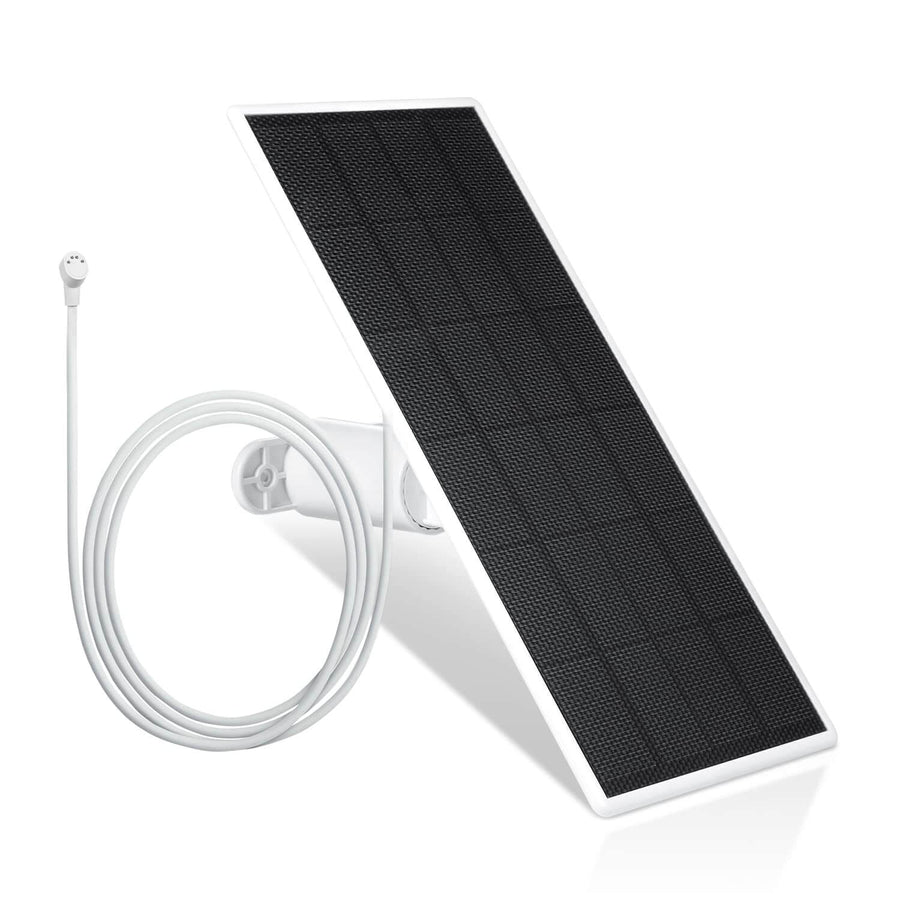
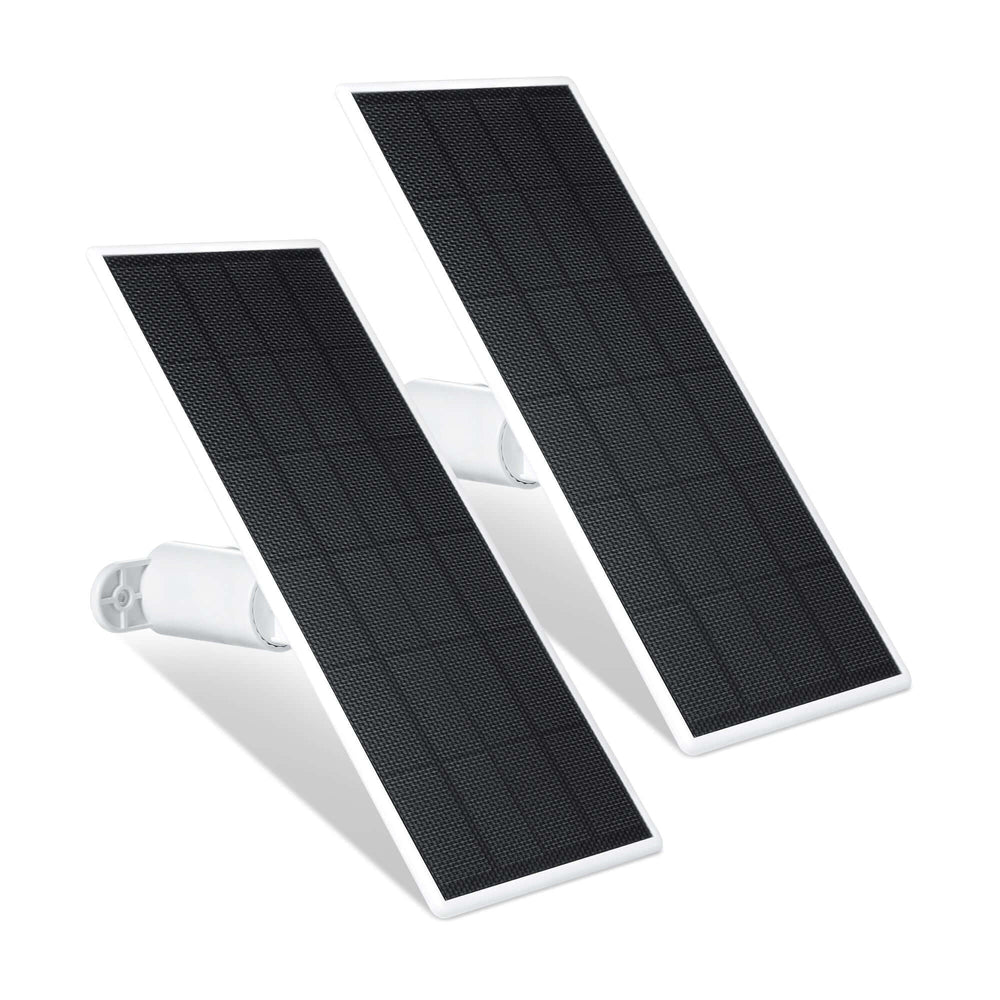
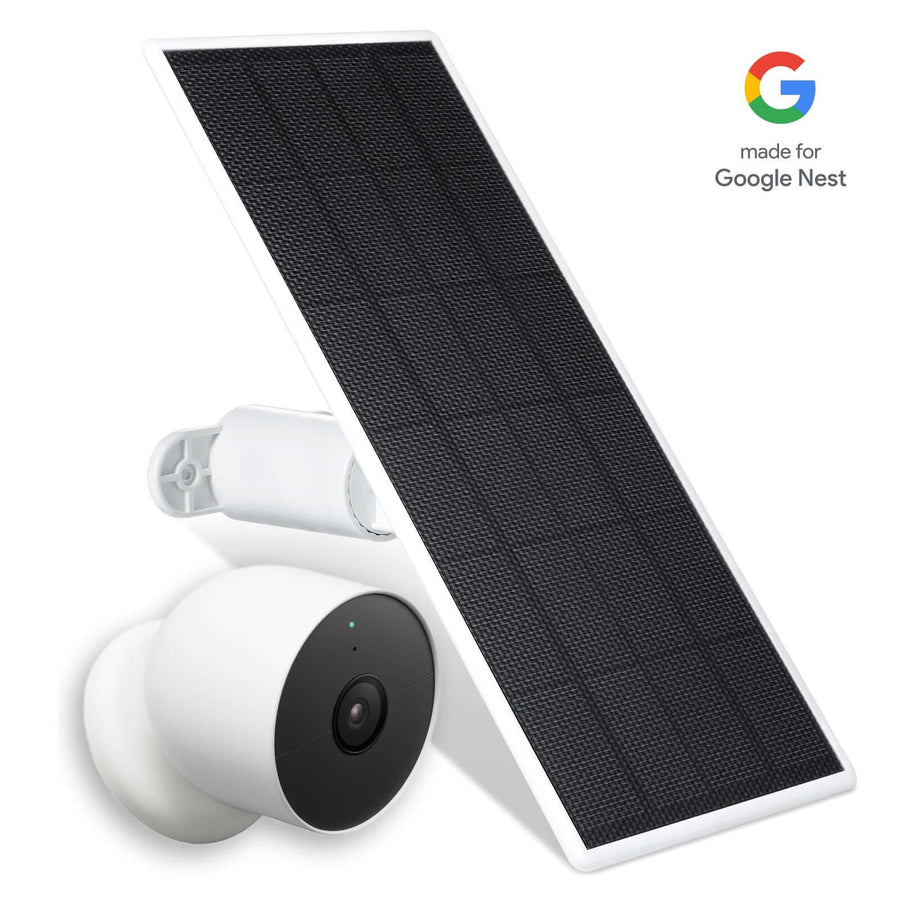
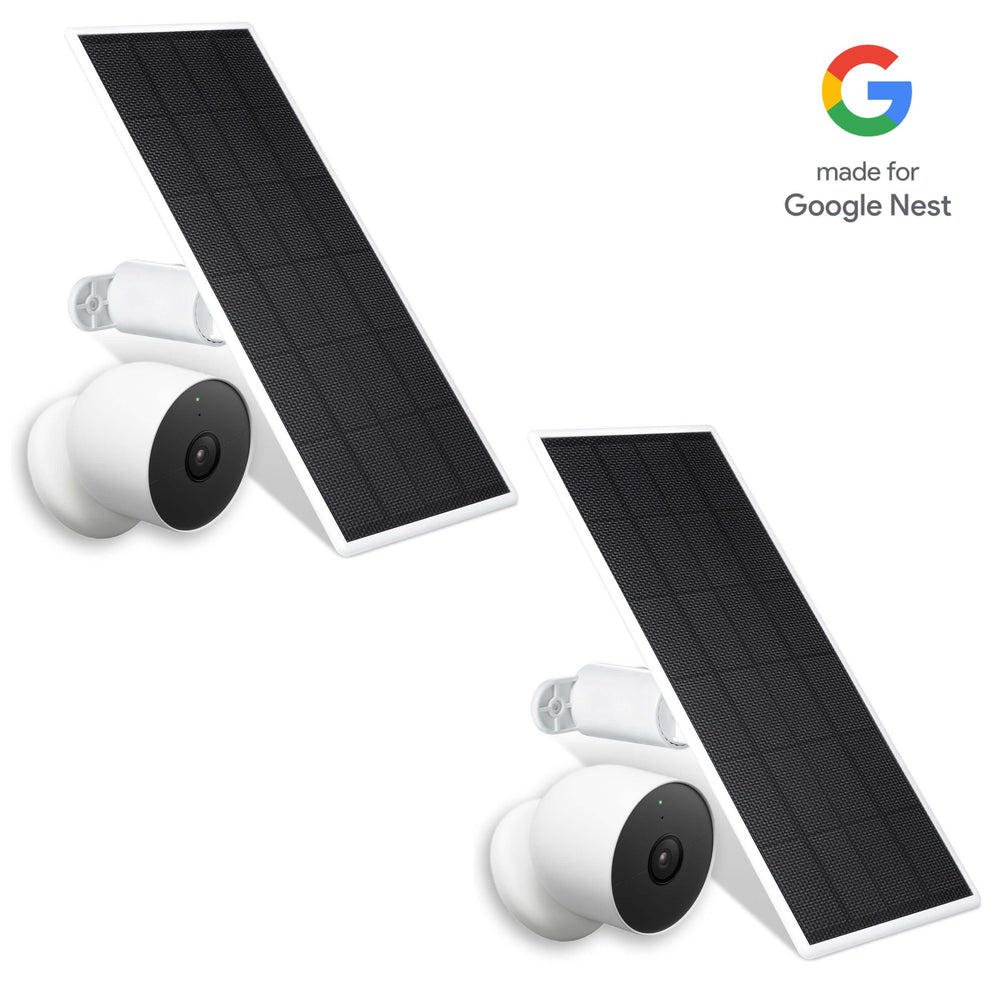
To reduce battery-related downtime, the Wasserstein Solar Panel Charger for compatible Arlo Ultra, Ultra 2, Pro 3, Pro 4, and Pro 5S cameras provides continuous solar charging to prevent unexpected power loss that may cause a camera to go offline.
Restart the Camera
Restarting the camera often resolves temporary software or connectivity issues.
For battery-powered models:
-
Remove the battery.
-
Wait approximately 10 seconds.
-
Reinsert the battery.
-
Allow the camera to reconnect.
For wired cameras:
-
Unplug the power cable.
-
Wait 10 seconds.
-
Plug the cable back in.
A simple restart can restore communication between the camera, router, and cloud services without requiring additional troubleshooting.
Check Your Internet Connection
If your camera remains offline, verify that your network is functioning properly. Test other devices connected to the same network. If multiple devices are experiencing connectivity issues, your internet service may be unavailable.
Try rebooting your router:
-
Unplug the router.
-
Wait 30 seconds.
-
Plug it back in.
-
Allow the network to fully reconnect.
You should also perform an Ookla speed test near the camera location. Poor upload speeds can affect camera performance even when basic internet access appears normal. If the router cannot reconnect after restarting, contact your internet service provider.
Troubleshoot Wi-Fi Signal Problems
Weak Wi-Fi coverage is another frequent reason an Arlo camera goes offline. Move the camera closer to the router temporarily. If connectivity improves, the issue is likely related to signal strength rather than hardware failure.
If you use an Arlo Base Station or SmartHub, keep the camera within approximately 300 feet (90 meters) when possible. Physical obstacles such as walls, metal surfaces, brick, and concrete can significantly reduce the effective range.
You should also verify that the camera is connected to the correct Wi-Fi network. If you recently changed your router, updated your Wi-Fi password, or relocated the camera, the saved network settings may no longer be valid.

The placement of your camera also affects connectivity. A better mounting location can improve both surveillance coverage and wireless performance. The Wasserstein Adjustable Metal Wall Mount allows flexible positioning with 360-degree rotation and 90-degree tilt, making it easier to optimize both camera viewing angles and Wi-Fi reception.
Check Your Arlo SmartHub or Base Station
If your system uses an Arlo base station, verify that it is operating correctly. Check that the base station has power and is not connected to a switch-controlled outlet that may have been turned off accidentally.

A solid amber light on the Camera icon of the Arlo Base Station indicates connectivity issues.
Review the LED indicators on the unit:
-
A solid amber light often indicates an internet connectivity problem.
-
Other LED patterns may indicate synchronization or network issues.
You should also restart the Arlo Base Station by unplugging it for several seconds before reconnecting it. If firmware updates are available, install them through the Arlo app. Firmware updates frequently address connectivity bugs and improve system stability. In some situations, moving the base station closer to the router can improve communication between devices.
Reduce Wireless Interference
Wireless interference can cause an otherwise healthy camera to repeatedly disconnect. Try moving nearby Wi-Fi devices at least 3 feet away from the base station or router. Wireless speakers, smart home hubs, cordless phones, and other networking equipment can interfere with camera communications.
You can also:
-
Change your router's wireless channel.
-
Reduce congestion on crowded networks.
-
Remove or relocate electronic devices near the camera.
-
Minimize large metal objects between the camera and router
Improving signal quality often resolves recurring offline problems.
Verify Wi-Fi Settings
Network changes frequently cause cameras to lose connectivity.
If you recently:
-
Replaced your router
-
Changed your Wi-Fi password
-
Updated network security settings
-
Created a new network name
Your camera may need to be reconnected through the Arlo app. During setup, carefully verify that the camera is connecting to the intended Wi-Fi network and that all credentials are entered correctly. Many "camera offline" messages originate from simple configuration mismatches after a network change.
Arlo Pro and Arlo Go Specific Fixes
Some models have unique troubleshooting requirements. For an Arlo Pro, inspect battery contacts for dirt, corrosion, or damage. You can also test the camera with a different compatible base station to determine whether the issue is camera-related or base-station-related. Owners of Arlo Ultra cameras may also benefit from dedicated Arlo Ultra accessories for home security that can improve placement, power management, and overall reliability.
If you use an Arlo Go camera, cellular coverage plays an important role. Move the camera to a location with stronger mobile reception and verify that the cellular plan remains active.
Check Arlo Service Status

Sometimes the problem is not within your home network at all. If troubleshooting steps do not resolve the issue, check Arlo's service status page to determine whether cloud services are experiencing outages. A temporary platform issue can prevent devices from appearing online even when your camera, router, and base station are functioning correctly.
Factory Reset as a Last Resort
If the camera remains offline after completing all previous steps, a factory reset may be necessary.
Before resetting:
-
Remove the camera from the Arlo app.
-
Back up any settings if applicable.
For most Arlo cameras:
-
Press and hold the Sync button for approximately 15 seconds.
-
Wait until the LED blinks amber.
-
Release the button.
-
Complete setup again through the Arlo app.
Because a reset removes existing configuration settings, it should only be performed after other troubleshooting methods have failed.
Prevent Future Offline Issues
While occasional connectivity problems can happen, several Arlo accessories - camera solar panels, chargers, and mounts can help reduce downtime.
-
Wasserstein Arlo Pro 2 Solar Panel - provides continuous charging for compatible cameras, helping prevent battery-related outages.
-
Wasserstein Magnetic Arlo Charging Cable - offers a reliable, weatherproof charging solution that eliminates frequent battery swaps for compatible Arlo models.
-
Wasserstein Adjustable Arlo Wall Mount and Wasserstein Gutter Mount - allows more flexible positioning, helping cameras maintain stronger Wi-Fi connections while improving surveillance coverage.
These accessories can contribute to a more reliable and easier-to-manage security system.
When to Contact Arlo Support
If your camera continues going offline after completing all troubleshooting steps, contact Arlo Support.
Before opening a support ticket, gather:
-
Camera model number
-
Serial number
-
Firmware version
-
Screenshots of error messages
-
Offline timestamps
-
Base station information
-
Details about recent network changes
Providing this information upfront can help speed up the troubleshooting process and lead to a faster resolution.
Frequently Asked Questions
What should I do first when my Arlo camera goes offline?
Start by checking power, battery level, and internet connectivity. Then verify the camera's status in the Arlo app before moving on to more advanced troubleshooting.
Why does my Arlo camera keep going offline?
Common causes include weak Wi-Fi signal strength, low battery levels, router issues, wireless interference, and problems with an Arlo Base Station or SmartHub.
What do amber LED lights mean on Arlo devices?
A double-blinking amber light on many cameras indicates a critically low battery. A solid amber light on a base station often points to an internet connectivity issue.
How close should my Arlo camera be to the router?
The ideal distance depends on obstacles and interference, but moving the camera closer to the router is one of the quickest ways to diagnose signal strength problems.
How do I reset an Arlo camera?
Most Arlo cameras can be factory reset by holding the Sync button for approximately 15 seconds until the LED begins blinking amber.
Why won't my Arlo camera connect during setup?
Incorrect Wi-Fi credentials, weak signal strength, incompatible network settings, or router configuration issues can prevent successful setup.
Can a solar panel help prevent Arlo cameras from going offline?
Yes. Maintaining a consistent battery charge reduces the risk of power-related disconnects. Solar charging accessories can be especially helpful for cameras installed in hard-to-reach outdoor locations.
Leave a comment