

Why Does My Google Nest Cam Battery Keep Dying?
If your Google Nest Cam battery keeps dying faster than expected, several factors may be responsible. Activity levels, motion detection, video quality, night vision, Wi-Fi, temperature, and how often you view the camera feed can all affect battery life.
The Google Nest Cam (battery-operated) is designed to work with the Google Home app, giving you a convenient way to monitor your smart home without keeping the camera connected to a power outlet. But a busy camera location can use significantly more power than a quiet one.
In this comprehensive guide, you'll learn why your Nest Cam battery may drain quickly, how to test its battery life, step-by-step setup instructions, and which continuous power options can reduce or eliminate the need for frequent charging.
Google Nest Cam Specs & Smart Features At-a-Glance
Before troubleshooting battery performance, it helps to understand the hardware and smart features built into the Google Nest device:
-
Video Quality & Field of View: Delivers crisp 1080p HD video quality with High Dynamic Range (HDR) and a 130° diagonal field of view. When recording or live streaming, a green LED light (green LED light lets you know when the camera is active) illuminates on the front plate.
-
Night Vision Capabilities: Equipped with high-power 850 nm infrared LEDs that provide clear night vision up to 20 feet in total darkness.
-
Audio & Intelligent Alerts: Supports full two-way audio with noise cancellation. On-device machine learning powers intelligent alerts, allowing the camera to distinguish between people, animals, and vehicles directly on the device.
-
Weather Resistance: Features an IP54 weather-resistant rating, making it suitable for both indoor placement and severe outdoor installation.
-
Automatic Low-Power Mode: When the internal Nest Cam battery drops below critically low thresholds (around 20%), the camera automatically engages a built-in low-power mode to restrict non-essential features and preserve basic event recording for as long as possible.
How Long Should a Google Nest Cam Battery Last?
The expected battery life of a Nest Cam depends largely on how much activity the device detects, how many events it records daily, and its surrounding environment. In typical conditions, a single charge can last anywhere from 1 to 7 months.
Google's estimates based on event volume are approximately:
|
Activity Level |
Events Per Day |
Approximate Battery Life |
|
Busy |
20–25 |
~1.5 months |
|
Typical |
9–12 |
~3 months |
|
Quiet |
2–4 |
~7 months |
These figures show why two Nest Cam devices can have very different battery performance. A Nest Cam higher up watching a busy walkway or driveway may record many more events than one monitoring a quiet interior room.
Your actual cam battery life can also vary with temperature, video quality settings, event clip length, Wi-Fi network conditions, and specific camera settings.
Why Does Your Nest Cam Battery Drain Quickly?
A battery-powered Google camera has to use power whenever it detects activity, processes events, records video footage, or communicates across your Wi-Fi network.
1. Too Much Motion Detection & False Alerts

Frequent motion detection is one of the primary causes of rapid battery drain. The camera's on-device processing constantly monitors for:
-
People walking past or approaching your property
-
Animals moving through the field of view
-
Cars, bicycles, or street traffic
-
Trees swaying in the wind and moving shadows
-
Repeated activity in busy nearby areas
-
False alerts caused by unnecessary movement or changing light conditions
More activity means more recorded events and significantly greater power consumption. If your camera is constantly monitoring movement that is not important to you, open the Home app to adjust activity zones and focus on specific areas.
2. Frequent Live View and Streaming Video
Opening the camera feed frequently can also use additional power. Every time you access Live View or watch streaming video, the camera has to remain fully active while sending the video feed across your network to the Google Home app.
If you're troubleshooting a rapidly draining battery, try checking notifications and recorded event video history instead of repeatedly opening the live feed.
3. Weak or Unstable Wi-Fi Connection
A reliable Wi-Fi network is critical for efficient Nest Cam operation. If the camera repeatedly loses and reconnects to Wi-Fi, its internal antenna increases power consumption to re-establish the connection.

Open the Google Home app and check the camera's connection status. Pay particular attention if:
-
The camera is installed far from your router
-
Thick walls or metal barriers interfere with the signal.
-
The camera frequently goes offline in event logs.
-
The battery issue started after changing your network hardware or SSID.
-
Other smart home devices in the same area have connection problems.
4. Cold Weather Impact
Outdoor temperatures heavily influence lithium-ion battery chemistry. During an outdoor installation, extreme cold reduces overall capacity and charging speed. The Nest Cam battery does not charge below 32°F (0°C), and charging slows down significantly when temperatures approach freezing. If your camera is battery-operated outdoors, consider seasonal temperature drops when investigating sudden battery drain.
5. Night Vision and Video Settings

Night vision increases power requirements because the camera's infrared LEDs draw extra electrical energy to illuminate night scenes up to 20 feet away.
Video quality settings matter as well. High-resolution recording, maximum HDR processing, and longer event clip durations all require extended processing time and higher power consumption per event. Review your camera's video settings and event activity before assuming the battery itself has failed.
Step-by-Step Installation & Mounting Guide
Proper setup and physical mounting ensure your Google Nest Cam captures what matters without creating constant false alerts or physical risks.
Standard Wall Mount Setup
-
Gather Tools: Prepare a drill, Phillips screwdriver, flat-head screwdriver, 3/32 in drill bit for pilot holes, 1/4 in drill bit for wall anchors, and a 1/2 in bit if you need to pass power cable wiring through an exterior wall.
-
Drill Pilot Holes: Hold the wall plate against your chosen mounting location, mark the screw positions, and drill your pilot holes.
-
Install Anchors & Wall Plate: Insert wall anchors into the holes if mounting into drywall or masonry. Align the wall plate and drive the included screws firmly into place.
-
Attach Magnetic Plate & Base: Screw the magnetic plate onto the backplate until snug. Place the magnetic base onto the magnetic mount.
-
Attach & Angle Camera: Position the Nest Cam onto the magnetic base. Adjust the angle while viewing the live camera feed in the Google Home app to verify coverage.
-
Mounting on Metal Surfaces: If mounting directly onto a metal surface without screws, verify that the magnetic connection holds securely before letting go.
Installing the Secure Loop Accessory
For overhead installations or high-traffic areas, the secure loop accessory adds essential physical drop prevention:
-
Screw the secure loop into the threaded insert on the bottom of the camera body by hand.
-
Tighten the connection securely using a flat-head screwdriver.
-
Pass the loop band over the magnetic mount base before snapping the camera back onto its magnet.
-
Pull the retention mechanism until snug. The pull-tab collar (tab lets you tighten or loosen the strap) ensures you can easily remove the camera whenever it comes time to recharge.
Indoor Tabletop Setup with Camera Stand
For using the camera indoors without drilling into walls:
-
Purchase the official camera stand (sold separately).
-
Connect one end of the charging cable to the back of the stand and plug the other end into a nearby power outlet.
-
Mount the camera onto the stand's integrated magnetic socket.
-
Place the assembly on a flat surface such as a shelf, mantle, or desk.
How to Make Your Nest Cam Battery Last Longer
You do not necessarily need to disable useful smart features on your Google Nest device. Instead, focus on reducing unnecessary background activity:
Optimize Activity Zones
Activity zones allow you to concentrate monitoring exclusively on the areas that matter around your home.
For example, you may want your camera to focus on:
-
A front door entrance
-
A private driveway
-
A specific walkway
-
A side gate
-
Another designated security zone on your property
By ignoring sidewalk traffic, neighboring yards, or street lanes, you prevent irrelevant motion from triggering event clips.
Reduce Unnecessary Motion Events
If your Nest Cam constantly captures passing cars, neighborhood animals, or blowing trees, adjust its tilt angle or narrow its detection rules in the Google Home app. The goal is to eliminate motion events that do not provide actual security value.
Review Video Quality and Event Clip Length
If maximizing battery life is your main priority:
-
Lower video resolution from High to Max only if necessary.
-
Reduce maximum event recording clip lengths.
-
Adjust re-trigger interval times so the camera doesn't record back-to-back clips during continuous motion.
Limit Unnecessary Live View
Use notifications and event history in the Google Home app to review what happened rather than keeping live streams running unnecessarily.
How to Test Your Nest Cam Battery
Before replacing a battery or contacting support, run a standard 24-hour baseline test:
-
Fully charge the Nest Cam battery using its official charging cable and power adapter until the green LED light indicates a full charge.
-
Note the exact starting battery percentage in the Google Home app.
-
Place the camera in its normal environment with standard activity settings enabled.
-
Avoid manually opening the live camera feed or changing settings during the testing window.
-
Record total event counts captured throughout the period.
-
Check the battery percentage again after exactly 24 hours.
If the camera loses an unusual amount of charge despite recording very few events, inspect your charging setup, cable connections, and power source. Check your official warranty document if hardware defects are suspected.
What to Do If Your Nest Cam Won't Stay Charged
Start by checking physical power connections, adapters, and wall supply sources.
Check the Power Source
Verify that:
-
The magnetic power cable is firmly attached to the camera's base connector.
-
The wall power outlet is active and delivering uninterrupted current.
-
The charging contacts are clean and free of dirt or debris.
-
You are using an official or certified Google power adapter.
Continuous Power Options for Nest Cam
If your camera covers a busy area and the internal battery drains too fast for manual charging, continuous power accessories offer a permanent solution:
-
Wasserstein Weatherproof Pogo Pin Cable: Available in long lengths (such as 26ft), this weatherproof pogo pin cable plugs directly into a wall outlet to deliver continuous power outdoors without weather exposure risks.
-
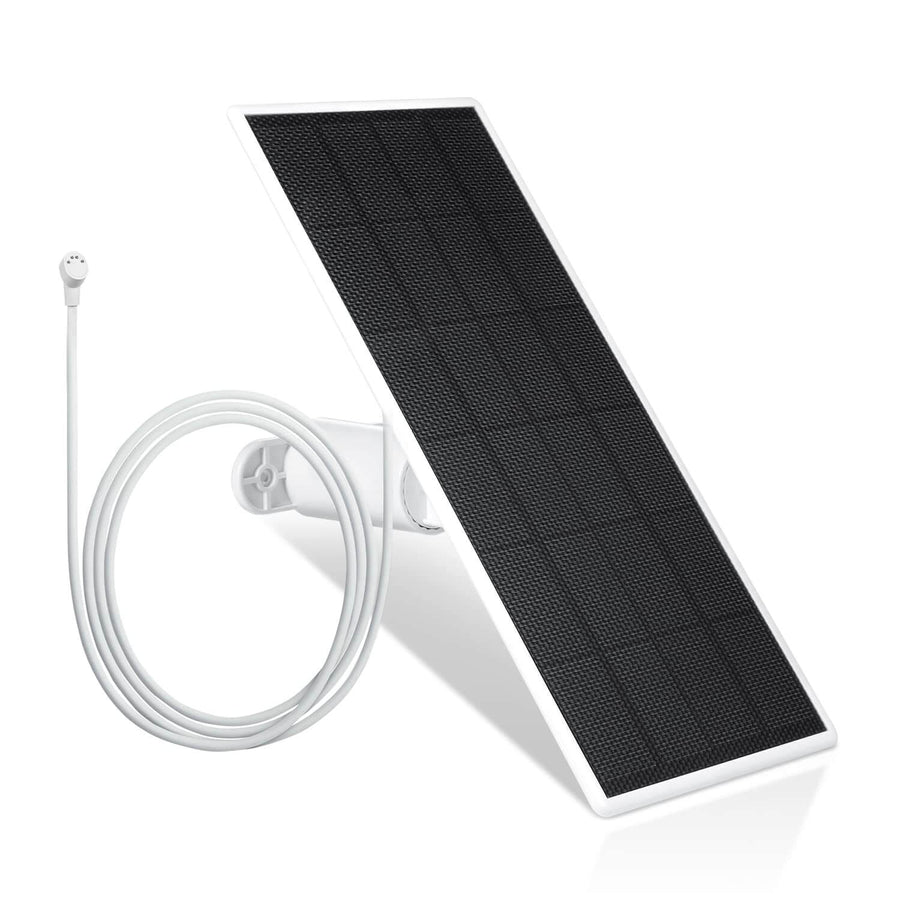
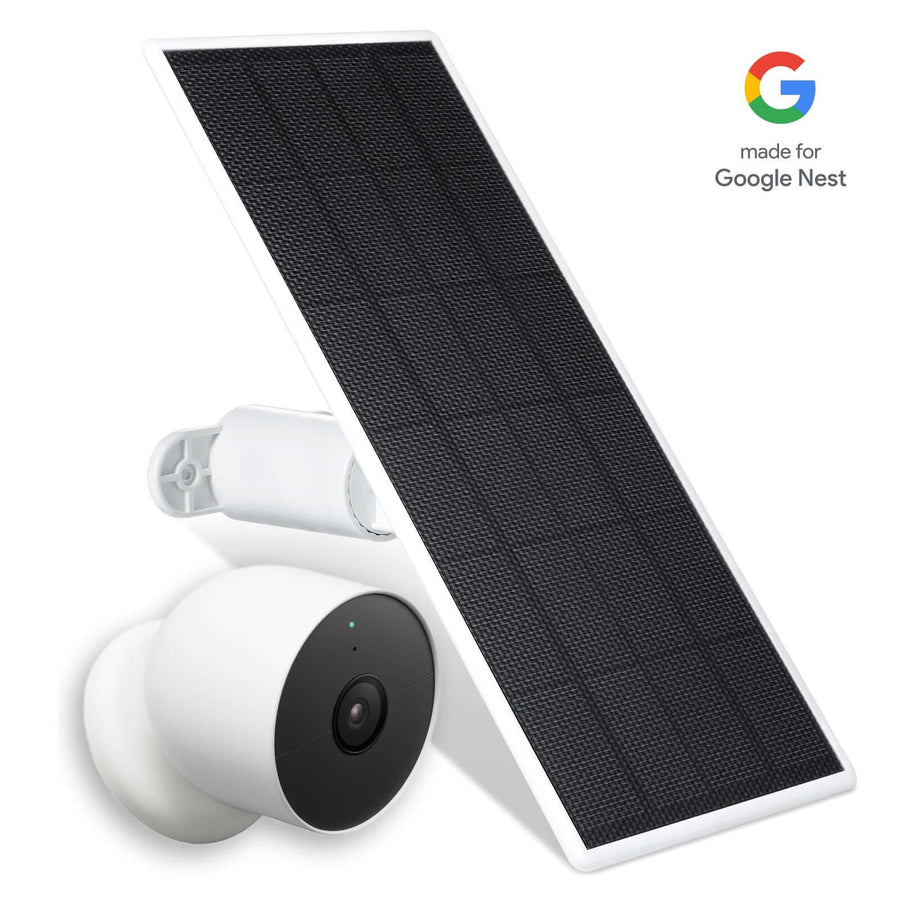
Wasserstein Solar Panels: Compatible 2.5W and 3.5W solar panel accessories (sold separately) harness natural sunlight to trickle-charge the battery continuously during daylight hours.
-
Wasserstein PoE Adapter: Supplies power over Ethernet cabling via an RJ45 connection (LAN cable sold separately), powering the camera while data continues over your Wi-Fi network.
Power Outage Backup Capabilities

When connected to continuous wired power, the internal battery serves as an automatic backup. If a power outage cuts household electricity, the camera seamlessly transitions to battery power so recording continues uninterrupted.
Maximize Features with a Google Home Subscription
A Google Home (formerly Nest Aware) subscription adds advanced cloud features, longer video history, and smarter analytics to your Google Nest Cam:
Event Video History Options
-
Standard ($10/month or $100/year): Includes 30 days of event clip video history across all supported Google Nest devices in your home.
-
Advanced ($20/month or $200/year): Includes 60 days of event clip video history plus up to 10 days of continuous 24/7 video history (24/7 continuous recording requires a continuous wired power source).
Familiar Face Detection

Google Home includes Familiar Face Detection (familiar faces feature). Over time, on-device algorithms and cloud processing learn to recognize recurring visitors, family members, and regular guests. Recognizing familiar faces lets you silence notifications for family members while retaining critical security alerts for unrecognized people.
Reviewing your cloud event history logs in the Google Home app helps identify hidden motion triggers—such as blowing tree limbs or passing buses—so you can adjust activity zones and extend battery life.
Troubleshooting Checklist
Work through this step-by-step checklist if your Google Nest Cam battery keeps dying:
[ ] Fully charge the battery using an official power cable.
[ ] Inspect the magnetic charging cable for physical damage or loose pins.
[ ] Test the wall power outlet with another electrical device to verify power flow.
[ ] Review daily motion event counts in the Google Home app.
[ ] Set focused activity zones to cut out street lanes and sidewalks.
[ ] Turn off unnecessary detection categories (e.g., general motion, animals) to limit false alerts.
[ ] Avoid opening frequent or long streaming video sessions.
[ ] Lower resolution or shorten event recording clip lengths in video settings.
[ ] Check Wi-Fi signal strength at the camera location using the app.
[ ] Consider seasonal ambient temperatures if the camera is installed outdoors.
[ ] Perform the 24-hour battery consumption test.
[ ] Upgrade to a solar panel or weatherproof continuous power cable if motion levels remain high.
FAQs
Why is my Google Nest Cam battery draining so fast?
Frequent motion detection, high event counts, long live streaming sessions, max video resolution, active night vision, cold temperatures below freezing, and weak Wi-Fi signals all accelerate battery drain.
How long should a Google Nest Cam battery last?
Depending on daily event volume, settings, and climate, the battery typically lasts between 1.5 months (busy areas with 20–25 daily events), 3 months (typical areas with 9–12 daily events), and 7 months (quiet areas with 2–4 daily events).
Does frequent motion detection drain the Nest Cam battery?
Yes. Every detected motion event requires the camera to wake up, process scene data, record video, and send alerts across Wi-Fi. Using activity zones in the Google Home app significantly cuts down on unnecessary triggers.
Does poor Wi-Fi cause battery drain on a Nest Cam?
Yes. When signal strength is weak, the camera increases radio transmitter power and repeatedly attempts reconnection, consuming additional battery energy in the process.
Can I leave my Google Nest Cam plugged into an outlet all the time?
Yes. You can leave the Nest Cam connected to continuous power using an indoor power cable or a certified outdoor weatherproof cable.
Can a solar panel keep my Nest Cam charged?
A compatible solar panel accessory (sold separately) can trickle-charge the battery throughout the day, eliminating the need to manually remove the camera for charging in sunny outdoor locations.
What app do I use to manage the Google Nest Cam battery model?
The Google Nest Cam (battery-operated) is set up, managed, and customized exclusively through the Google Home app using a standard Google Account.
Leave a comment