

How to Set Up a Ring Camera Without a QR Code
Quick summary:
-
Setup Limitations: Most modern Ring cameras strictly require the unique QR code, a 5-digit PIN, or a MAC ID during setup to prevent the unauthorized use of lost or stolen devices.
-
The Manual Bypassing Exception: Certain legacy, first-generation Ring Floodlight Cam models are the only exception that allow users to completely bypass the PIN requirement during app setup by navigating to the Other Options -> Can't Scan menu.
-
Hidden Identifier Locations: If the main external sticker is gone, the QR code or MAC ID is frequently printed under the removable mounting bracket, inside the battery compartment, on the original retail box, or visible digitally within a previous owner's active Ring account.
-
The Used Device Catch: Second-hand or inherited cameras cannot be set up even with a valid QR code if they are physically locked to a previous owner's email. The original owner must manually delete the hardware from their app to initiate Ring's ownership transfer process.
-
Troubleshooting Steps: Missing identifiers require a factory reset (holding the setup button for 15–20 seconds). If completely unreadable, Ring Support can manually override and verify activation if provided with photos of the camera, a readable device barcode, and proof of purchase.
Trying to figure out how to set up Ring camera without QR code can be frustrating, especially if you've already mounted the camera, misplaced the original box, or noticed that the QR code sticker has worn off over time. Since most Ring devices rely on a unique QR code or PIN during setup, losing that information often leaves users wondering whether the camera can still be used.
The good news is that the answer depends on your specific Ring camera model. Some older devices can be set up without scanning the QR code, while newer models typically require either the QR code, a 5-digit PIN, or a MAC ID to complete activation. In cases where none of these identifiers are available, Ring Support may be able to assist after verifying ownership.
This guide walks through every available option, from checking hidden locations for the QR code or PIN to using the Ring app for manual setup, locating the MAC ID, resetting the camera, and contacting support if necessary.
Can You Set Up a Ring Camera Without a QR Code?

In most cases, a Ring camera cannot be activated without its unique QR code or PIN. During setup, the Ring app uses this information to identify the device and securely associate it with your account. This security measure helps prevent unauthorized access or activation of lost or stolen devices. If someone could simply connect any Ring device without verification, it would create significant security concerns.
However, there are exceptions.
Certain original Ring Floodlight Cam models allow users to bypass the PIN requirement during setup by selecting the correct model through the app's Other Options menu. This workaround does not apply to newer Ring cameras, which still require a valid device identifier.
Before assuming the unit cannot be used, it's worth checking for the QR code, PIN, or MAC ID in several locations. In many cases, the information is still available somewhere on the device or its original packaging.
Check Your Ring Camera for the QR Code, PIN, or MAC ID
Before attempting any advanced troubleshooting, carefully inspect the camera. Many users think the sticker is gone when it's simply hidden behind a mounting component or inside the battery compartment.

Check these locations:
-
Back of the camera housing
-
Inside the battery compartment (battery-powered models)
-
Under the mounting bracket
-
Behind removable covers or panels
-
Original packaging or product documentation
-
Barcode sticker attached to the box
Remember that the QR code, 5-digit PIN, and MAC ID are different identifiers, although they're often printed together on the same sticker. If you've recently moved to another house, don't throw away the box until setup is complete. Many users only realize they need the sticker after the camera has already been installed in its new location. If the sticker is damaged but the MAC address or PIN remains readable, you may still be able to continue the setup process manually.
Reset the Ring Camera Before Starting Setup
If the device has been previously configured or the setup process keeps failing, performing a factory reset is a good first step.

To reset most Ring cameras:
-
Locate the setup button.
-
Press and hold it for 15 seconds; some models may take up to 20 seconds.
-
Release the button once the light begins flashing.
-
Wait for the camera to enter setup mode.
A flashing light helps ensure the camera has entered setup mode before you move forward. Keep in mind that resetting the camera removes its local settings, but it does not remove ownership protection. If the device is still registered to another account, you'll still need to complete Ring's ownership verification process before you can finish setup.
Set Up Your Ring Camera Manually in the Ring App

Once the camera has entered setup mode, you can begin the installation through the Ring app, which is especially helpful the first time you set up the camera without a scannable code.
Follow these steps:
-
Open the Ring app and sign in.
-
Select Set Up a Device.
-
Choose Security Cams.
-
Manually select your exact Ring camera model using the device list or other identifying information shown in the app.
-
Tap I'm Ready to Scan.
-
Choose Other Options.
-
Select Can't Scan the QR Code.
-
Choose Enter Code Manually.
-
Enter the 5-digit PIN or MAC ID from the packaging or the back of the camera.
-
Follow the remaining prompts.
Some original Ring Floodlight Cam models allow you to continue without entering a PIN after selecting the correct model. If your device supports this option, the app may simply continue as long as you follow the on-screen instructions carefully.
It's important to choose the correct model. Selecting the wrong camera may prevent the app from recognizing your device or displaying the correct setup options.
Connect the Camera to Your Home Wi-Fi
After the camera has been identified, the next step is to connect it to your wireless network. Your phone will temporarily connect to the Ring setup network created by the camera. Once connected:
-
Select your home Wi-Fi network.
-
Enter the Wi-Fi password.
-
Wait for the camera to register.
-
Allow the app to complete firmware updates if prompted.
Do not close the app or move too far away from the camera during this stage. If setup appears to stop midway, verify that the camera remains in setup mode and that your phone has a stable internet connection before trying again.
Choose the Correct Ring Camera Model
Not every Ring device follows the same setup process.
Original Ring Floodlight Cam
Some first-generation Floodlight Cam models allow manual setup without scanning the QR code.
Within the Ring app:
-
Select Security Cams.
-
Tap I'm Ready to Scan.
-
Select Other Options.
-
Choose Can't Scan the QR Code.
-
Select Enter Code Manually.
-
Choose the model simply labeled Floodlight Cam.
For eligible models, the app may allow setup to proceed even if no PIN is available.
Ring Spotlight Cam
If you're setting up a Spotlight Cam, first locate the MAC ID on the back of the camera or inside the battery compartment. If the sticker is missing completely, check your previous Ring account for the device information before contacting support.
Ring Doorbells
For Ring doorbells, select the Doorbells category during setup. The QR code or PIN is commonly located inside the battery compartment or on the rear sticker. If both identifiers are missing, manual setup options are limited, and you may need additional assistance from Ring Support.
Find the MAC ID if the QR Code Is Missing
The MAC ID is often the most useful identifier when the QR code can no longer be scanned.
Depending on your model, you may find the MAC address:
-
on the rear label
-
inside the battery compartment
-
on the original packaging
-
within your existing Ring account if the device is still registered
If the camera still appears in your account, open its device information to locate the MAC value. Although some users refer to the serial number interchangeably, it alone usually cannot replace the required device identifier during setup. The Ring app primarily uses the PIN or MAC ID.
If You Bought a Used Ring Camera
Buying a second-hand Ring camera can introduce another common setup issue. Even if you have the QR code, the device may already be linked to another account.
If that happens:
-
Ask the previous owner to remove the device from their Ring account.
-
Complete Ring's ownership transfer process.
-
Restart setup after ownership has been transferred.
This situation frequently occurs when someone purchases a home with existing Ring equipment already installed. Although the camera remains physically attached to the property, ownership is still tied to the previous user until it is properly released.
Contact Ring Support If You Cannot Find the QR Code or PIN
If you've searched the camera, the original packaging, and previous account information, and still cannot locate the required identifier, your next step is contacting Ring Support. This is a common customer concern, and if neither the QR code nor the PIN can be found, the camera may not be set up until Ring Support reviews the case.
Before reaching out, gather as much information as possible:
-
Proof of purchase
-
Your account email
-
Device model
-
Any readable MAC ID or barcode
-
Photos of the camera
-
Approximate purchase date
Providing clear photos and purchase documentation helps support verify ownership more quickly. If Ring confirms ownership but cannot recover the missing device information, they'll explain your available options and may discuss re-provisioning or replacement. Unfortunately, if the device cannot be verified, the setup request may be rejected for security reasons.
Recommended Upgrade for Battery-Powered Ring Cameras
Once your camera is working again, it's worth reducing how often you need to remove it for charging.
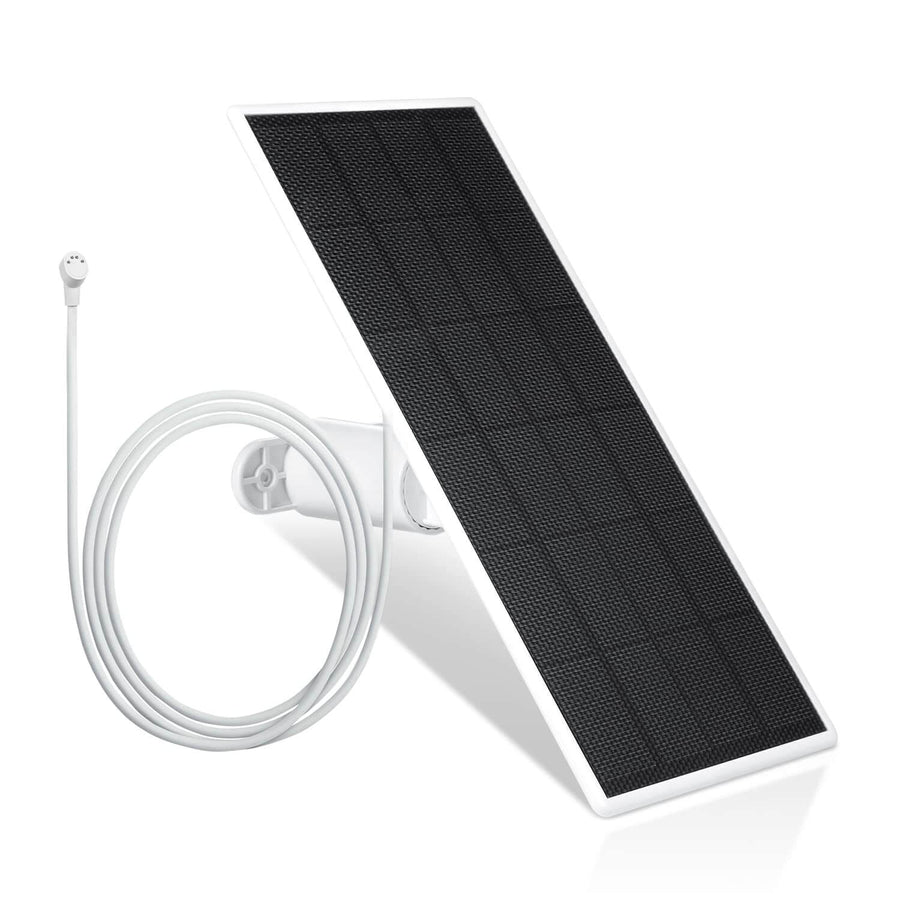
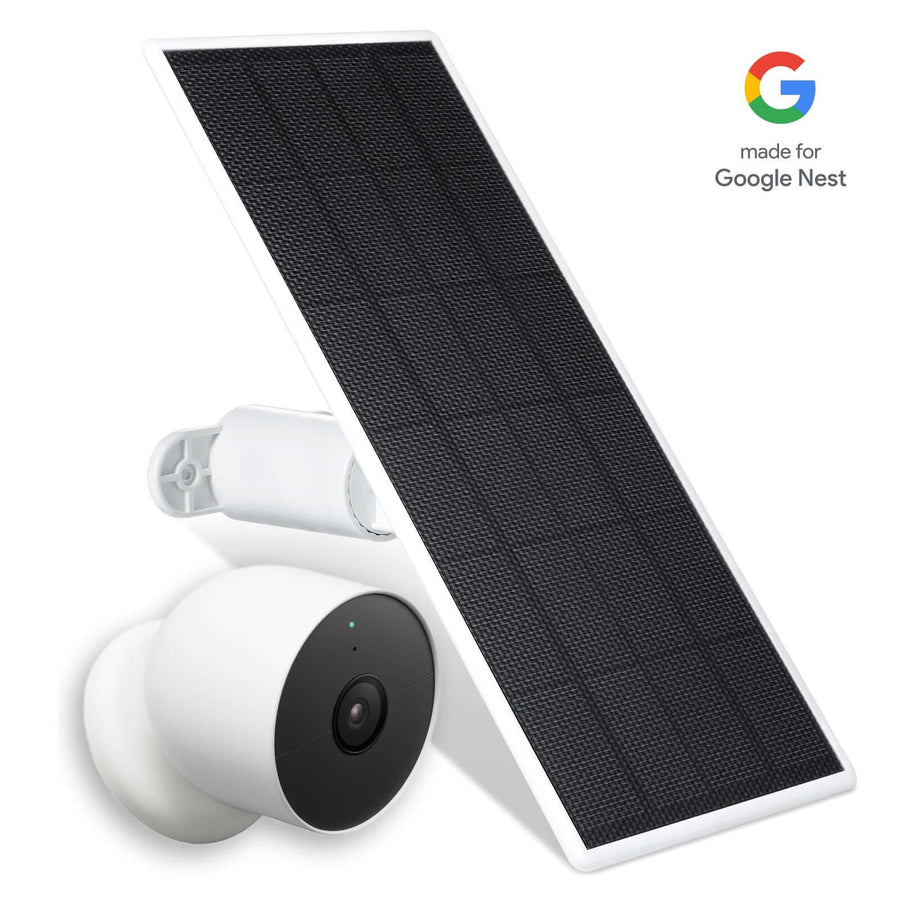
The Wasserstein Ring Solar Panel provides continuous charging for compatible battery-powered Ring cameras.

Key features include:
-
Compatible with several popular Ring battery cameras.
-
High-efficiency solar cells help maintain battery charge throughout the day.
-
Adjustable 360° mounting bracket for better sun exposure.
-
Extra-long 13.1-foot cable allows flexible installation.
-
Quick installation with both DC and USB-C connectors included.
For outdoor cameras that receive regular sunlight, the solar panel helps minimize charging interruptions and keeps your security system running with less maintenance.
Prevent Future Setup Problems
Once your camera is successfully connected, take a few simple precautions to make future setup much easier.
-
Take a photo of the QR code and PIN.
-
Save the image in cloud storage.
-
Record the MAC ID in a secure location.
-
Register the device before permanently mounting it.
-
Keep the original packaging and purchase receipt.
These small steps can save time if you ever replace your router, move to another house, or need to reinstall the camera years later.
FAQs
Can you set up a Ring camera without a QR code?
Sometimes. Certain older Ring Floodlight Cam models allow manual setup without scanning the QR code, but most newer Ring devices require either the QR code, a 5-digit PIN, or a MAC ID.
How do you manually add a Ring camera using the MAC ID?
In the Ring app, select Set Up a Device, choose your camera model, select Can't Scan the QR Code, and enter the MAC ID when prompted if your device supports manual entry.
Can you set up a Ring camera using only the serial number?
Usually not. The Ring app primarily requires the QR code, 5-digit PIN, or MAC ID. The serial number may help Ring Support identify the device but generally cannot replace the required setup information.
What should you do if you moved your Ring camera to a new location?
Reset the camera, place it into setup mode, and repeat the setup process through the Ring app. If you've lost the QR code during the move, check the original packaging or locate the MAC ID before contacting Ring Support.
What if your phone cannot scan the QR code?
Use the Can't Scan the QR Code option in the Ring app. If the PIN or MAC ID is available, you can enter it manually to continue setup. If the app still will not accept the code, checking Ring Community posts or an existing support thread may be helpful before contacting Ring Support—thanks for your patience.
Leave a comment