

Arlo Doorbell Not Connecting to WiFi - Solutions Guide
Quick Summary:
-
A 2.4 GHz network is mandatory — Arlo Video Doorbells (1st and 2nd Gen) do not support 5 GHz Wi-Fi. If your mesh router combines both bands under one name, create a dedicated 2.4 GHz guest network specifically for your Arlo devices to prevent setup failures.
-
Proximity solves onboarding drops — A flashing amber LED ring indicates a connection failure. Keep the doorbell within 10–15 feet of your router during the initial pairing process, disable your phone's mobile data, and turn off any active VPNs.
-
Low power kills the Wi-Fi handshake — Wire-free models must be charged to 100% before troubleshooting, while wired models require a solid 16–24V AC from the transformer. Insufficient voltage will cause the internal Wi-Fi chip to constantly drop off the network.
-
Weather extremes trigger radio shutdowns — Arlo doorbells operate between -4°F and 113°F (-20°C to 45°C). In extreme summer heat or winter freezes, the device will intentionally shut down its Wi-Fi radio to protect the battery.
-
Continuous power options eliminate downtime — To bypass battery-draining disconnects on the Arlo 2K (2nd Gen), a dedicated plug-in power adapter can supply continuous electricity from a standard indoor outlet, removing the need for manual battery swaps.
Dealing with an offline smart doorbell can be frustrating, especially when you rely on it for home security. Whether you are setting up a brand-new Arlo Video Doorbell (2nd Generation) or troubleshooting a 1st Generation Arlo Audio or Video Doorbell, connectivity issues are usually tied to network frequency, signal strength, or power levels.
This guide provides a comprehensive walkthrough to get your Arlo device back online, covering everything from basic network requirements to advanced router settings and hardware solutions.
Quick Overview of the Video Doorbell Wi-Fi Problem

A typical connection failure scenario involves the Arlo Secure App being unable to discover the doorbell during the "onboarding" process. You might see the LED ring on the doorbell flashing Amber, which indicates failure when trying to connect to the network, necessitating a re-attempt of the entire setup process.
Basic Requirements for Success
Before diving into deep troubleshooting, verify these three pillars of Arlo connectivity:
-
2.4 GHz Network Mandatory: Most Arlo doorbells do not support 5 GHz Wi-Fi. They must be connected to a 2.4 GHz band to function.
-
App & Firmware Version: Ensure you are using the latest version of the Arlo Secure App. If your doorbell is already paired but offline, check for pending firmware updates in the device settings.
-
Network Health: Confirm your home Wi-Fi is working by checking if other mobile devices can connect to the internet at the same location as the doorbell.
Step-By-Step Wi-Fi Troubleshooting for Your Video Doorbell
If you are still in the setup phase and haven’t mounted your device yet, a dedicated Arlo doorbell installation guide for wired and wireless setups can help you confirm that the hardware is installed correctly before you dive into network diagnostics.
If your device is stubbornly staying offline, follow these steps in order to clear temporary glitches and environmental interference.
1. Power-Cycle Your Hardware
Restarting your devices can clear temporary network "handshake" errors.
-
Restart the Router: Unplug your router for 30 seconds and plug it back in.
-
Restart the Doorbell:
-
Wire-Free Models (AVD2001): Remove the battery for 15 seconds and re-insert it.
-
Wired Models (AVD1001): Turn off the circuit breaker for 10–15 minutes until the internal bypass battery dies, then turn it back on.
-
2. Optimize Setup Placement
Signal strength is critical during the initial pairing phase.
-
Proximity: During setup, place the doorbell within 10–15 feet (3–4.5 meters) of your Wi-Fi router. You can move it to its permanent location once the connection is established.
-
Phone Placement: Keep your phone near the doorbell during the pairing process to ensure the Bluetooth or Wi-Fi handshake is not interrupted.
-
Disable Mobile Data: Sometimes, a phone’s "Auto-Switch to Cellular" feature interferes with local device discovery. Temporarily disable mobile data on your phone before pairing.
3. Verify Environmental Factors
Extreme outdoor temperatures can cause Arlo doorbells to go offline. Arlo recommends an operating range of -4°F to 113°F (-20°C to 45°C). If it is a blistering summer day or a freezing winter night, your doorbell may shut down its Wi-Fi radio to protect the battery.
Solving QR Code Scanning Failures
During setup, the Arlo app will display a QR code on your phone screen for the doorbell to scan.
-
Wait for the Chime: You must hear a chime from the doorbell to confirm the scan was successful. Do not tap "Continue" in the app until you hear this sound.
-
LED Status: For 1st Gen Video Doorbells, the LED ring should blink white during this process.
-
Cleaning the Lens: Ensure the doorbell camera lens is free of smudges or debris that might prevent it from reading the code on your phone screen.
Power Requirements and Battery Maintenance
A weak power source is a leading cause of intermittent Wi-Fi drops, and choosing compatible Arlo Essential Wired Video Doorbell power accessories can help ensure your transformer and wiring meet the device’s requirements.
-
Full Charge Required: For wire-free models, verify the battery is at 100% before troubleshooting. A low battery may lack the voltage necessary to maintain a stable Wi-Fi connection.
-
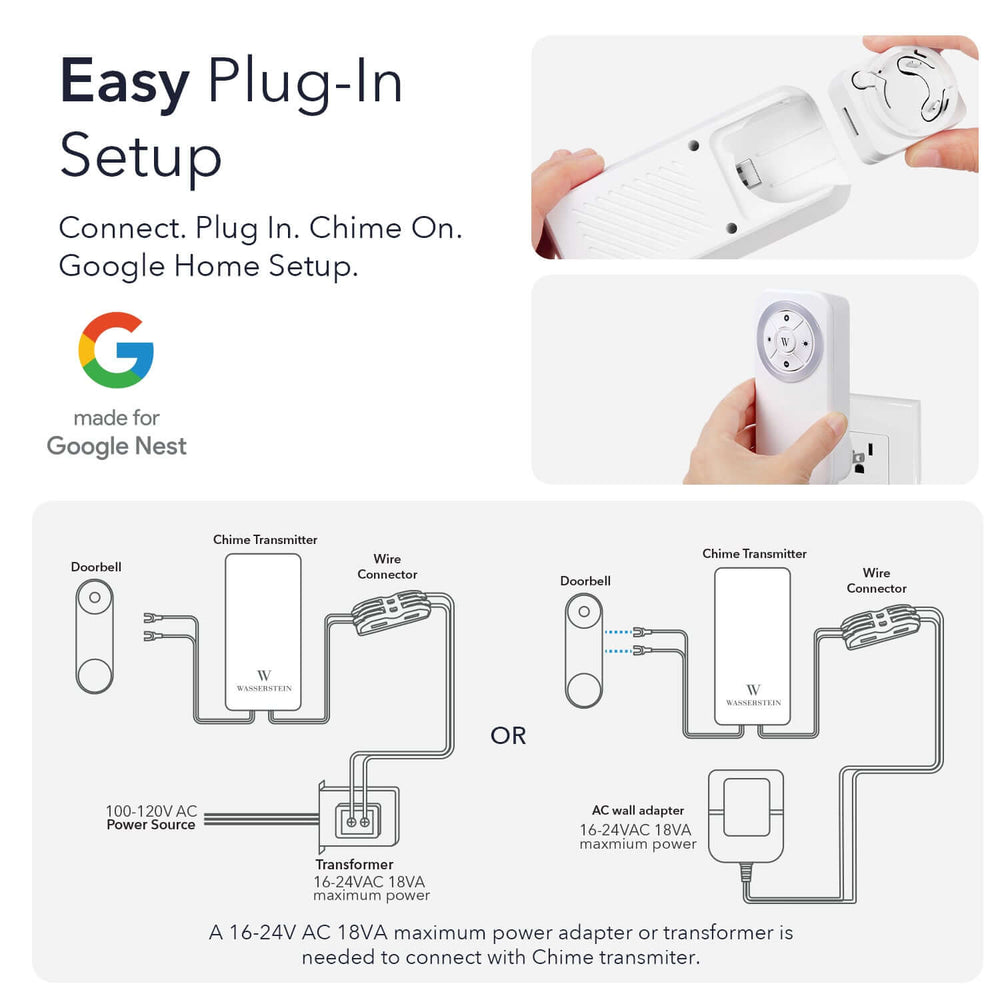
Voltage for Wired Models: The Arlo Wired Video Doorbell (AVD1001) requires 16-24V AC. If your transformer provides less than this, the Wi-Fi chip may frequently disconnect.
Enhancing Your Setup with Wasserstein Power Solutions

If you are tired of charging batteries for your Arlo Video Doorbell 2K (2nd Generation), the Wasserstein Power Adapter (5.2V 2A) is a game-changer, and you can further enhance your setup with dedicated Arlo Video Doorbell 2K. It includes a 26ft L-shaped USB-C cable, allowing you to provide continuous power from a standard indoor outlet. This ensures 24/7 security without the downtime of battery swaps. Note: This specific adapter is only compatible with the 2nd Gen 2K model.
Advanced Wi-Fi Fixes and Router Settings
If basic steps fail, the issue likely lies within your router's security or band management settings.
-
SSID and Case Sensitivity: Remember that Wi-Fi names (SSID) and passwords are case-sensitive. Double-check every character in the Arlo app.
-
Disable AP Isolation: Ensure "Access Point (AP) Isolation" or "Client Isolation" is turned OFF in your router settings. This feature prevents wireless devices from communicating with each other.
-
Enable UPnP: Universal Plug and Play (UPnP) can help the doorbell navigate your router's firewall more effectively.
-
Mesh Wi-Fi Guest Networks: If you use a mesh system (like Eero or Orbi) that combines 2.4 GHz and 5 GHz into one name, the doorbell may struggle. Create a dedicated 2.4 GHz Guest Network specifically for your Arlo devices to improve stability.
Perform a Factory Reset on the Video Doorbell
When Arlo is unable to discover your device despite all efforts, a factory reset is the final software-based solution.
WARNING: A factory reset deletes the doorbell from your Arlo account. You will have to repeat the entire setup process.
How to Reset:
-
Arlo Video Doorbell (1st & 2nd Gen): Use the reset pin or a paperclip to press and hold the reset button (usually found on the back of the device) until the LED flashes amber.
-
Arlo Audio Doorbell: Open the battery cover and press and hold the Sync button for 10 seconds.
-
Re-Pairing: Once the LED indicates a reset, open the Arlo Secure App and follow the "Add New Device" prompts.
Optimizing Viewing Angles for Better Detection
Once your doorbell is back online, ensure it is positioned to capture the best footage; if you use a different ecosystem, similar Ring Video Doorbell bundles and accessories can help you dial in angles and power options for Ring devices as well. The Wasserstein 35° to 55° Horizontal Wedge Wall Mount is compatible with both the Arlo Video Doorbell 2K (2nd Gen) and the Arlo Essential Wire-Free.

This mount allows you to adjust the horizontal angle to get a better view of your walkway. It also helps cover up unsightly holes left by old doorbells, providing a professional and weatherproof finish to your installation.
Final Checklist for Wi-Fi Setup Success
Before calling support, run through this quick checklist:
-
[ ] Phone is on a 2.4 GHz Wi-Fi band.
-
[ ] VPN is disabled on your mobile device.
-
[ ] Doorbell battery is at 100% or transformer is 16-24V AC.
-
[ ] Router is within 10-15 feet for the initial setup.
-
[ ] Arlo Troubleshooting Tool has been run via the app for a network scan.
FAQs
How do I check if my network meets basic requirements for Arlo doorbell connection?
To ensure a successful connection, verify that you are connecting to a 2.4 GHz Wi-Fi network, as Arlo devices do not support the 5 GHz band. Additionally, ensure your Wi-Fi SSID and password are entered exactly as they appear, as they are case-sensitive. You should also confirm that other devices can connect to the internet to rule out a general router issue.
How do I prepare my Arlo doorbell for Wi-Fi troubleshooting?
Start by ensuring the device has adequate power; charge wire-free batteries to 100% or verify that wired models are receiving 16-24V AC. You should also check the outdoor temperature, as Arlo recommends a range of -4°F to 113°F (-20°C to 45°C) for optimal operation. Finally, try a restart by removing the battery for 15 seconds for wire-free models or toggling the circuit breaker for 10–15 minutes for wired models.
What are the most common Wi-Fi connection problems and their fixes?
The most frequent issues involve signal interference and range limitations. If your doorbell is offline, try moving your router or SmartHub closer to the doorbell to increase signal strength. Ensure there are no major obstructions, such as thick walls or other electronic equipment, between the router and the doorbell that could interfere with the signal.
How do I use the Arlo app to reconnect my doorbell to Wi-Fi?
Open the Arlo Secure App and follow the onboarding prompts to add your device. Ensure your mobile device is connected to the same 2.4 GHz network you intend to use for the doorbell. If you have recently changed your Wi-Fi password or switched ISPs, you must use the app to update the network settings for your Arlo products.
How do I properly scan the QR code during doorbell setup?
Hold your phone so the QR code is visible to the doorbell camera and wait to hear a chime noise. Do not continue the setup process until you hear this chime. If the doorbell fails to scan, ensure the camera LED is blinking (the Video Doorbell LED ring specifically blinks white) and that you are not using a VPN on your mobile device.
Leave a comment